Reviews

Use an HDTV as my computer monitor?

A couple of months ago, I had a crazy idea, which I thought might just work: get a 1080p HDTV, a really nice one, and use it as my computer monitor. The advantage: cheaper and bigger than 30″ LCD monitors. I also found a model that I thought couldn’t be beat — one that displayed 10-bit color. If you’re unfamiliar with monitor color depth, you might want to have a look at the following:

Basically, you should have a monitor capable of displaying 8-bit color or better. Why? Because DSLRs capture 12-bit, 14-bit and 16-bit color, and you’re going to miss out on a lot if you can’t see all those colors when you’re editing the photos.

Laptops display only 6-bit color and use dithering to make up for the difference between 6-bit and 8-bit. Normal displays, including Apple Cinema Displays, have 8-bit color. The more expensive computer displays out there have 10-bit, 12-bit and even 14-bit color. LaCie and Eizo seem to be the only companies that build these sorts of high-end monitors.

The prices start around $1,000 for a 21″ or 24″ monitor at 10-bit color, and go up from there, to $2,000 or even $3,000. So you can imagine my delight at finding an HDTV at 40″ that could display 10-bit color and cost only $1,300. Granted, the resolution was only 1920×1080, and at that size, a computer monitor would have been at 2560×1920 or more, but you can’t have everything, right?

The particular HDTV I found is made by Sony and is from their Bravia series. It’s no longer being made — Sony keeps changing models every couple of months. Apparently HDTVs evolve so fast these days there’s a need to do that. I’d give you the model number, but it doesn’t matter any more. The specs were great though:

  • Full 1080p
  • 24p True Cinema
  • 10-bit color processing and 10-bit color display
  • Full digital video processor
  • Advanced contrast enhancer
  • An assortment of ports (HDMI, PC, S-Video, component and composite)
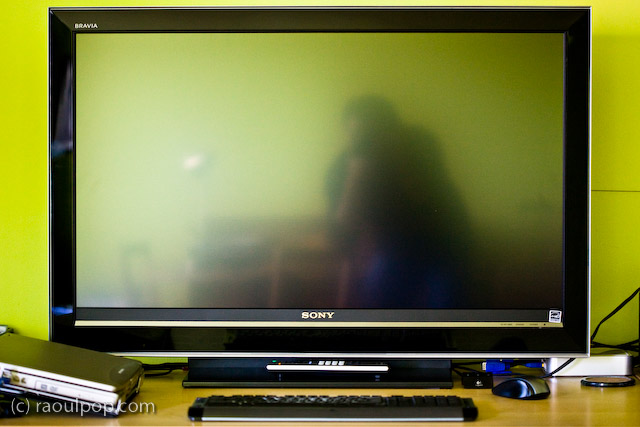
That’s how it looked on my desk. Did it do everything promised in the specs? Yes. Was the quality of the display as I expected? Yes. Editing photos on it was a stunning experience. I was able to see colors like I couldn’t see them before. Believe me, you don’t know what you’re missing until you see your DLSR photos on a high quality display.

So why am I speaking in the past tense about it?! For a single reason: it was much too bright for my eyes. Therein lies the main difference between TVs and monitors. TVs are built to be much brighter, since they’re meant to be viewed from a distance. Monitors are built with a much subtler level of brightness and contrast, since they’re meant to be viewed up close. This didn’t become apparent to me until I had the TV on my desk, about 2 feet from my eyes. I didn’t have a problem with the size of the screen (although it was bigger than expected), but the brightness killed me. Within a half hour, my eyes started to burn and I got a headache. I tried to tune down the brightness and contrast, but I couldn’t get it where it needed to be; I don’t think the TV could go down that low.

After much arguing with myself, and trying all sorts of things, including stepping back from it as much as possible, I had to come to grips with the fact that it wasn’t the fit I needed. Stepping back to an appropriate distance would have defeated the purpose of using it as a monitor, because at that point, it would have become a TV displaying my laptop’s DVI feed. Although it had the display quality I needed — and not a single bad pixel, it was a perfect display — I couldn’t use it.

If you’re in the market for an HDTV, definitely check out the Sonia Bravia line. They’ve got stunning color. They’re amazing TVs. Just don’t try to use them as computer monitors. It won’t work. To their credit, they’re not intended to be monitors. They’re TVs — really good TVs.

Standard
How To

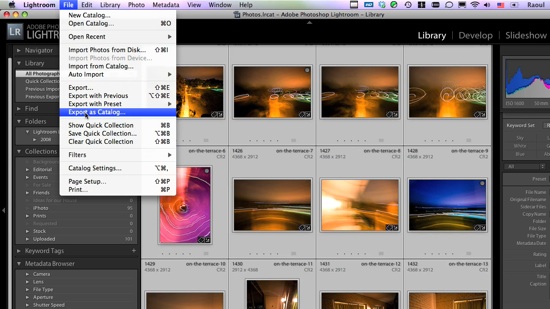
How to transfer photos between Lightroom catalogs

This screencast will show you how to transfer photos between different Lightroom catalogs, and it will go beyond that by also demonstrating how the whole process could be made a LOT easier if Adobe wanted to.

In the screencast, I refer to an article I wrote a while back, entitled “The next stage for Lightroom“, where I put forth a proposal for improving the way Lightroom stores photos, with an eye on catalog portability (laptops, for example). If you have the time, please read through that article after you see the video.

The video is about 10 1/2 minutes long, file size is 78MB, and it’s 720p HD, MOV. You can view it online by clicking on the screenshot below, or download it.

Standard
Places

A weekend down in Florida

Ligia and I took a mini-vacation this past weekend and flew down to Florida to see my parents. You might remember it as the place where I feel most at home here in the States.

We left our cozy little apartment last Friday morning, and in a couple of hours, thanks to the amazing convenience of modern travel, I found myself wielding a weed whacker in my parents’ yard. After other assorted yard work, a little dazed by the torrid sun, I took refuge under the auspices of a cold shower, where I cleaned bits of grass and plants… from places I didn’t even know I had. There’s something funny about switching computer work for yard work. I just know there is.

So what else did I do? The usual geeky son stuff. I assembled a home theater furniture piece and rewired the various components that made it up, such as the two satellite dish receivers, VCR, DVD player and Apple TV. Now it looks really nice, if I might say so myself.

I installed the latest updates from Apple on their two Macs. Installed SP3 on their XP virtual machine running on Parallels. (Which reminds me, I need to check with my mom soon and see if Parallels will continue to give her grief now that I reinstalled it.)

Also updated their Drobo with the latest version of the Dashboard. By the way, their Drobo is still loud because the fan cranks into high gear prematurely and stays there inordinate amounts of time. I talked about this in my Drobo review, and I’d like to see Data Robotics come out with a firmware update for this problem in the near future.

We also found time to go to the beach, twice. I got to blind everyone there with my amazingly white complexion. It felt good — after all, I worked hard to get it. It took months and months in front of the computer to achieve that perfect pasty pallor.

One of our walks on the beach was at dusk.

As night fell and the sky darkened, city lights became more apparent in the distance.

We attended a friends’ wedding as well. I’d post their photo, but I’m not sure how comfortable they’d be with that, so I’ll stick to a photo of Ligia and I, taken by my mom.

I asked my parents if I could post a couple of photos I took of them, and they agreed. Here’s my dad.

And here’s my mom.

I’m happiest about convincing my mom to sit down with us on the last evening to watch The Awful Truth (1937), one of our most favorite movies. Yes, she enjoyed it.

Standard
Reviews

Hardware review: mStand by Rain

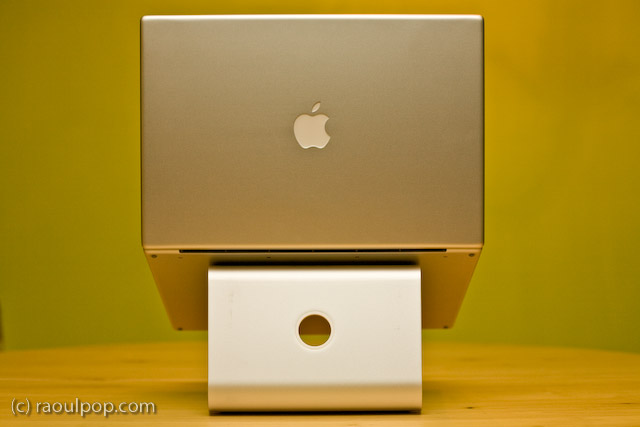
The mStand is quite possibly the best stand for the MacBook Pro line of laptops. It raises the laptop to an appropriate height, it does not block any of the MBP ports or buttons, its design is truly distinctive, its cast aluminum build matches the MBP line to a tee, and it is reasonably priced at $50.

I’ve tried out quite a few notebook stands in my time, and I’ve looked at even more of them in detail. I am happiest with the mStand. It suits my needs perfectly. However, it is not without faults, as you’ll see shortly. Its Apple-like design and look isn’t executed to the Apple standards.

First, the good:

  • Functional, simplistic and very elegant design
  • Although it is built of a single piece of aluminum, it will not scratch your laptop because it has little rubber contact points where your laptop rests on it
  • All aluminum build means it will dissipate your laptop’s heat fast.
  • The empty space underneath the stand aids with ventilation and also serves as a great place to store the external keyboard when not in use
  • The wire routing hole at the back of the stand looks very similar to the one on iMacs and Apple Cinema Displays and complements their design nicely
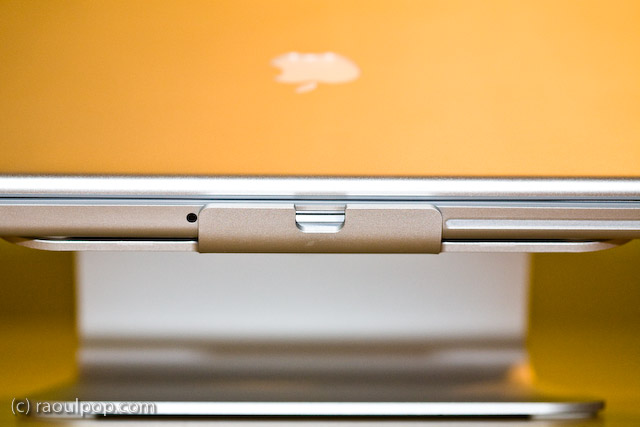
  • It blocks NONE of the MBP ports or buttons, such as the IR remote port, the latch for the top lid, or the SuperDrive slot. Of course, it does not block any of the side ports either, as you can see from the photos.

Now, the bad:

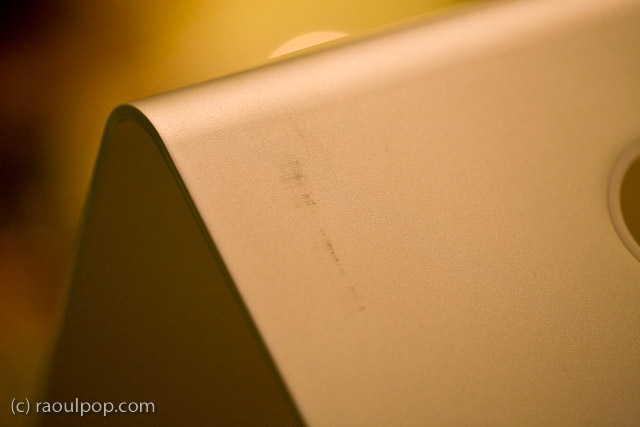
  • The paper (recycled?) packaging leaves terrible scuff marks on the stand, which mar its otherwise beautiful design and matte finish
  • The stand itself was covered in a thick white dust when I unboxed it, which caused significant sneezing. I hope it wasn’t harmful to my health, not sure what it was, and it sure didn’t look like regular dust.
  • The edges of the stand are not properly filed, which means they can be literally sharp enough to tear through one’s skin if you’re not paying attention. I had to use a metal file to finish the job they should have done at the factory.

Still, I think this is the best stand for my needs. As you may know, I already tried out the Logitech Alto and the Rolodex Stand, and had already tried other stands through the years, including the original Griffin Curve. I looked at vertical stands as well, like the Docking Stand from Power Support. But none of the stands offered unfettered access to all of the buttons and ports on the MBP, were as stable, and looked as good as the mStand.

While I loved the idea of the Docking Stand, it blocked access to the IR port, the latch button and the SuperDrive altogether, because the laptop sits top edge down in it. Putting the laptop in that stand the other way would cause some serious overheating to occur, since the venting grille is on the lid hinge side.

At any rate, I’m very happy with my mStand. In spite of its faults, which can be easily fixed through better quality control, it looks great and works great.

Standard
Reviews

Problems with meta-data entry in Lightroom

I’ve been having problems with meta-data entry in Lightroom, particularly the location meta-data. It’s not my computer that’s to blame. The problems exist on both the PC and Mac versions of Lightroom, although they’re more apparent on the Mac version.

When I first mentioned this on Twitter and Friendfeed (see here, here and here) I promised I’d put together a video if I found a good screencasting application. Ken Verburg pointed me to iShowU, which I used to make a short screencast demonstrating the problems. Thanks Ken!

I uploaded the video to my Vimeo account last night, but don’t try to view it there. The compression is terrible and you won’t be able to see what I’m doing. Instead, go there and scroll down till you see the download link. Click on that and view it locally on your computer (you’ll need Quicktime or iTunes). Another option is to download the video directly from my site. The original video has no loss in quality and you’ll be able to see everything properly.

The video will do a good job of conveying my frustration with the user interface in Lightroom. I really do hope the final version of Lightroom 2 will address these issues, because entering location metadata in Lightroom right now is terribly frustrating.

Standard