
- 16 Bit Versus 8 Bit Mode http://tinyurl.com/2snass #
- Is Silverlight 2 catching up with Flash? http://tinyurl.com/362kcc #
- BlueArc’s Titan is Flexing Petabytes http://tinyurl.com/3a357r #
- About a company that really knows how to leave a mess http://tinyurl.com/3cxwhn #
- California court threatens homeschoolers http://tinyurl.com/3abrco #
- Ziff Davis Media Files For Bankruptcy Protection http://tinyurl.com/28eocr #
- Where a Dollar Will Get You http://tinyurl.com/2xmh3b #
- Reduce, Reuse, Diffuse: Make Your Own Flash Diffuser from an Old Film Container http://tinyurl.com/2uqvp5 #
- Hit by ID theft, then plagued by Sprint http://tinyurl.com/372go3 #
- LucidTouch – the see-through mobile device http://tinyurl.com/3ban26 #
- Google Pulls Map Images at Pentagon’s Request http://tinyurl.com/32d5ww #
- How to Find Good Ideas for Business and Life http://tinyurl.com/24vqss #
- On the Street….The Silhouette, Milan http://tinyurl.com/2ptd99 #
- Inside the Shady World of Spy Gadgets http://tinyurl.com/2pv9b9 #
- Washday Blues: 1941 http://tinyurl.com/37wwsh #
- The Dangers of a Startup Democracy http://tinyurl.com/3299lb #
- Ask the Readers: How Do You Prepare for Enormous Debt? http://tinyurl.com/37a8xr #
- DoD to stop Google Maps from photographing any more army bases http://tinyurl.com/2gkjcz #
- TSA’s Ideal Laptop Bag http://tinyurl.com/28lhdq #
- The Best Kept Secrets of New York City http://tinyurl.com/3xpkmh #
Tag Archives: guides
A look at hard drives: finding the best deals


Given my recent push to find a feasible solution for my photo library, which resulted in the purchase of a Drobo (three, actually, but that’s beside the point), I’ve gotten to know a bit about hard drive prices. Here are my two cents on the issue.
Keep in mind that this advice is applicable only during the present time, since prices will continue to fluctuate and larger hard drives will become available, driving down the prices for the smaller ones. Let me also say that if you didn’t get your hard drives before, during or after Christmas, you missed out on some great deals.
Right now, the most economical drives (best size to price ratio) are the 500 GB ones. You can get great SATA drives with 16 MB caches (current standard size), 7,200 rpm and 3.0 GB/sec transfer speed at $120 (retail-boxed; OEM drives are cheaper).
If you must get a drive smaller than 500 GB, you can, but it’s not economical. The price per GB starts to go up once you go smaller. It’s about the economics of the thing. Regardless of the actual size of the drive, the price of the components and labor has to be factored in. Even if the drive is smaller in size, and it stands to reason that it should be cheaper, it costs money to put it together, and that cost is fairly inflexible. That’s why you may gasp when you look at the prices of 40 GB or 80 GB drives (if you can still find them) and you wonder why they cost so much when no one uses them anymore.
Back to bigger drives. I remember just 1-2 months ago, the 750 GB hard drives were double the price of the 500 GB ones, but the prices are coming down. In just another few months, or even less than that, they will close the gap and become the most economical drives you’ll find. That time isn’t here yet though. Right now, the least expensive 750 GB drives (retail-boxed) I can find start at $199. If 500 GB can be gotten for $100-120, then, proportionally speaking, 750 GB drives should be $150-180 in order to be as economical as the 500 GB drives. Not yet.
➡ Updated 2/27/08: The 1 TB (1,000 GB) drives have just dropped in price enough to be just as economical as the 500 GB drives. I’m very surprised that it’s happened this fast. The market has leapfrogged the 750 GB drives, as I thought it would. I’ve seen the WD 1 TB SATA drive pictured below for as as low as $230.
The 1 TB (1,000 GB) drivesaren’t economical yet, either. It’s likely that in 6 months or so, they’ll get to be great deals. It’s even possible that market forces will cause the prices to leapfrog over the 750 GB drives and push the 1 TB drives to the forefront. Right now, the least expensive 1 TB drive comes in at $260, which is more expensive than if you were to get two 500 GB drives. Keep in mind I’m talking strictly about the GB to price ratio here, not the convenience of having a single drive instead of two, which trumps the price difference somewhat.
Because I have a Drobo, I’m isolated somewhat from having to worry about whether I have a single drive or two drives. I can still get plenty of space if I stuff my Drobo with four 500 GB drives, then replace them with 750 GB or 1 TB drives later. Or, even better, I can take the wait and see approach. Right now, there’s plenty of space on the Drobo that stores my photo library, even with only two 500 GB drives inside. That means I can wait till the bigger drives get cheaper and buy an extra drive at that point.
Similarly, the Drobo that stores our movies and videos, plus our various other files, is doing just fine with three 500 GB drives. I don’t think I’m going to fill it up in the next month or two, and that means I can wait until the 750 GB drives, or maybe even the 1 TB drives, become economical.
With hardware, it’s about striking the balance between what you must have, and what can wait. Thankfully, even 500 GB is a ton of space for most people, so it’s a buyer’s market, as they say.
Another thing you can look at, once you know the prices of internal hard drives, is the prices of external drives. When you know how much an internal drive costs, you can subtract it from the cost of an external drive and figure out how much you’re paying for the enclosure and design alone, and whether it’s worth it to buy it.
This is why I said that the 500 GB LaCie drive was a bargain, and why I recommended that people buy it. Given that you can get a 500 GB drive for $100, and the drive costs $118 (at one point it cost only $109) you know this is a bargain. You’re paying only $18 to get the drive packaged nicely in a great USB 2.0 enclosure that makes no noise. Having fiddled around with plenty of enclosures in my time, I know a great deal when I see one.
By the same token, when you look at the G-Tech Quad Interface 500 GB drive, you know that’s not a bargain. When the drive itself costs only $100 and you pay $270 to get the drive and the enclosure, that means you’re paying $170 for just the enclosure and the quad interface. Is that worth it? You decide.
Don’t think I’m implying your decision has to be guided by price alone. While I dislike paying a premium for a product, I do it if I think it’s worth it. I think the Drobo is overpriced. I still bought three of them and I recommend them to others. I think Apple products are overpriced, but I still buy them and recommend them to others. (You’ll have to excuse my tone in that post — I was seriously irritated with Apple at the time, but what I said was true.)
It’s just that it’s worth knowing what you’re buying. If you’re going to spend your money on something, then you should do the research to back up your purchase decision. This is also why I’m steamed up about Apple’s non-transparency when it comes to their hardware specifications. I don’t know what I’m buying, and it bothers me. It doesn’t mean I don’t want to buy, it’s just that I’d like to know where my money’s going.
I hope this has been helpful to you.
How to properly clean your keyboard
I found myself needing to clean our iMac’s keyboard a few days ago. I remembered watching a video recently that suggested we should simply stick the keyboard in the dishwasher. I wasn’t about to do that. I doubted the circuitry would have worked afterwards, particularly the Bluetooth link between the keyboard and the computer.
The safer route was to simply remove the keys, wash them separately with warm water and soap, then wash the keyboard base with a cloth moistened with water and a mild soap solution. Ligia also got some cotton swabs and rubbing alcohol ready, just to make sure we’d be able to get into all of the keyboard’s crevices.
This solution should work for all keyboards. A word of caution: before you start doing anything to your keyboard, take a couple of photos of the key layout! You don’t want to find yourself with a bunch of keys in your hand, clueless about where to stick them… Take photos of the keys and have them ready to display on your computer, or print them out ahead of time.
Removing the keys is quite simple. You take a quarter or any larger coin, put it under a key, and pry upwards. The key should pop right out. Be careful though, you don’t want to break them — that would render the keyboard quite useless afterwards.
After the keys are removed, the keyboard should look something like this:

Please excuse the distortion caused by the camera lens. I used my 24mm prime to make for fast work.
Once the keys are off, Ligia cleaned the keyboard, and I got to work cleaning the keys. I used a basin filled with warm water and I poured in some detergent, then gave each key a light scrubbing with a brush. You can also use the sink directly, but you’ve got to be very careful there. Sinks have drain holes under the top lip, and your keys might just run into them, since they’re plastic and they float. Once they go into the drain, good luck getting them out. You can open up the P-trap and see if they’re there, but chances are that they’re already gone. So be very, very careful as you wash the keys. You want to make sure that you don’t lose any of them.
After the keys were washed, I put them in an absorbent cotton towel and shook them around a bit to get drops of water dislodged from the keys’ undersides, then, while keeping them bunched up in the towel, I ran a hair dryer in there to make sure they got dry a little faster. Here you’ll need to make sure all of the corners of the towel are raised up, otherwise your keys will start flying around… You can also leave them on a towel overnight if you don’t want to bother with the hairdryer.
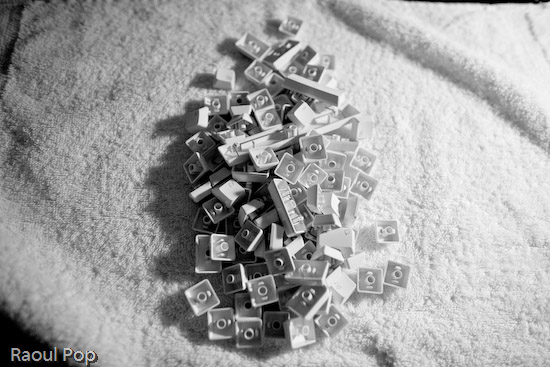
You also want to be careful that you don’t get excess liquid on the keyboard itself. The last thing you need after you go through the trouble of cleaning it is some problem with the circuits in there. Use a moistened cloth or paper towel, and clean it carefully, making sure you remove any debris or gunk or crumbs or whatever you find in there. Use cotton swabs moistened with rubbing alcohol to get into the tighter spots. When you think you’re done, examine it carefully under a strong light, to make sure you got everything off. Sometimes keys will stick because you or someone else in your house/office spilled sticky liquids on the keyboard, and if you don’t get that sticky gunk cleaned off, the keys will continue to stick even after you think you’ve cleaned them.
After Ligia got the keyboard base cleaned up, we stuck all of the keys back on the keyboard, and it looked quite beautiful when we got done. It was as if we’d gone out and bought a brand new keyboard. Just think of it! We did our part for the environment by re-using a piece of perfectly good hardware, and we also saved about $60. Pretty cool!

Downtown Bacau, Romania
Bacau is one of the bigger cities in Romania. I had a chance to visit its downtown area this September. I’d never been there before, so I stopped to take a few photos. It was early on a Sunday morning, so there weren’t many people on the streets.
I love the northern Italian architectural elements used in the facade of the Bacau Theatre building, especially the upper floor, with its balcony, arches and mini-towers.
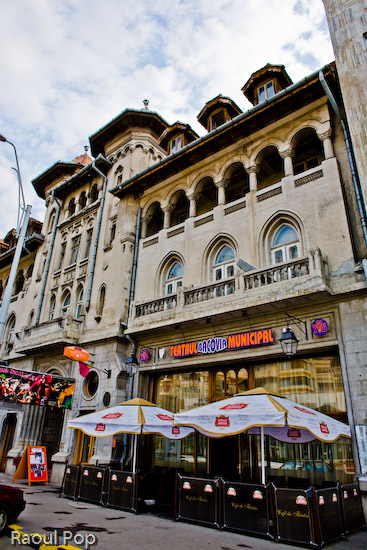
The entrance to the theatre is quite imposing:

Across the street from the theatre, you can see this large condominium building (at least I assume it’s condominiums, I doubt they’re all offices.) I thought the architectural plan was a good way to make a square shape look interesting. It looked pretty good, but, as one finds in Romania, ads were plastered all over its sides. I wonder what the people living in those apartments now obscured by the posters must think of it all. Are they getting paid? Are they just getting annoyed? Who knows.
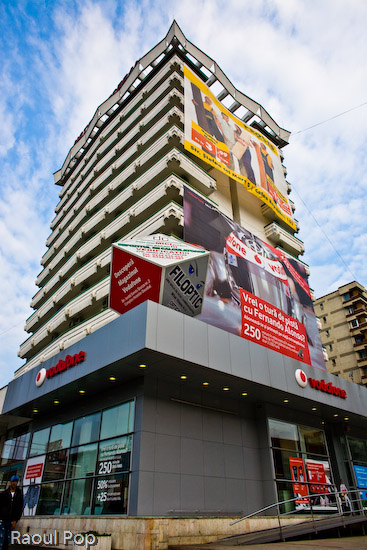
Right next door to the building above, we can see a monster left over from communist times… At least this dying breed of an apartment building is one of the better ones I’ve seen in Romania. One mostly sees nasty, crumbling, weather-stained concrete ruins when it comes to communist architecture. This particular building looks pretty well maintained, too. Of course, its central location might have something to do with that.

A little ways down the street, we find the public library, but the building is in sore need of restoration. I’m not sure if it’s still being used, but I’d love to get inside it at some point in the future. It could lead to some interesting photographic opportunities.

Here’s another view of the library, from the back:

There was a public park in the area, with art on display. I found a modern statue, and some post-modern wooden carved poles, styled after folk themes.


Hidden behind the park and public library, I found the Bacau Ateneu. One of our friends plays the violin over there. 🙂

Further down the street, you’ll see the county government building. This is the main entrance:

I liked the clasically-styled architecture, typical of turn-of-the-century construction. Here’s a window detail. Notice the stucco stripes, columns and arches.

That concludes my sightseeing tour of downtown Bacau. Who knows, maybe I’ll get to visit it again in the future and take more photos. 🙂
The Photoshop Anthology, by Corrie Haffly

I find Corrie Haffly’s book, “The Photoshop Anthology”, to be very useful to me. Being a web developer, involved in all aspects of site design and coding, her book is a great resource as I work on a design. In it, she teaches the readers how to use Photoshop to their advantage, for the specific needs of websites.
She’s wisely chosen not to advise people to use Photoshop to generate the site HTML. Instead, she chose to emphasize Photoshop’s proper role in the web design process, which is to create great graphics, work on site layouts and process/optimize photos for the web.
This book’s not meant to be studied in linear fashion, although one could choose to do so. Instead, it’s indexed and organized in such a way that jumping between subjects is made easy. As you work on a particular project and need to know how to do something, you can look up that task in the table of contents and get right to it. I can see that great thought went into organizing the book properly, and I appreciate that. The author took the time to think about the many tasks a web designer needs to do as he or she builds a site, then laid them out and addressed each of them in this book.
She starts out with the basics, such as using graphics, resizing documents, using masks and layers, and transparent backgrounds, then progresses to buttons and backgrounds (staples on websites), text (for logos or special uses) and using/manipulating images. Finally, she addresses the very real need of working on a site layout in Photoshop, and also talks about some nice advanced techniques such as batch commands, watermarking, web photo galleries and animated GIFs.
If you want to learn how to use Photoshop to design a website, then this book’s for you. If you’re just interested in learning Photoshop, this book’s not for you. Remember, it’s geared for web designers and the specific tasks we perform in Photoshop as we do our jobs. Given its focus, it’s a fantastic resource, and it has found a permanent place in my reference library.
 Raoul Pop


