Reviews

Hardware review: Logitech Alto Connect Notebook Stand

I bought two Logitech Alto Connect Notebook Stands (with 4-Port USB Hub). One’s a keeper and the other is going back. I love its design and functionality, but there are a couple of things that you need to know if you intend to buy it.

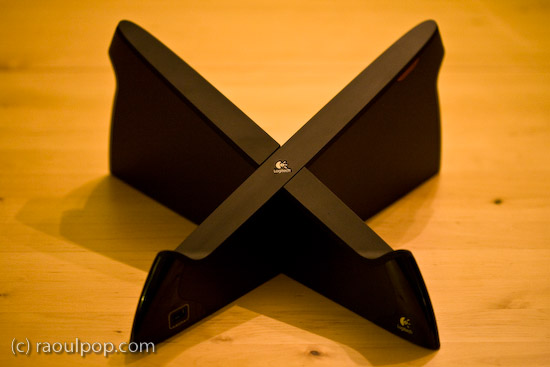
This innovative stand is shaped like an X and wrapped in glossy, black plastic. Does the shape remind you of anything? How about OS X? Or the X-Men? Or the old saying, “X marks the spot”? Not that Logitech is copying anybody, but that shape looks cool, is very different from any other laptop stand on the market, and supports a larger amount of weight, meaning it can work with heavier laptops.

The stand comes unassembled in the box, and you must put the two pieces together (they dovetail precisely). The assembly time is 1-2 minutes or so. It may take you a try or two until you figure out the right way to join the two pieces together (there’s a 50/50 chance you’ll get it right the first time).

An added benefit of this stand is the addition of a built-in USB hub. The hub is self-powered, meaning that you’ll need to plug in a small adapter (included in the box). One port is located on the left front leg of the stand (visible above), and the other three ports are in the back, as you can see below.

As I said, I love this stand, and I think the design is wonderful. I have a lot of respect for Logitech. I’ve used wireless keyboards made by them, Kensington and Microsoft, and Logitech has consistently stood head and shoulders above its competitors when it came to battery life and ease of connectivity. I have a Logitech wireless keyboard and mouse set right now, have been using it for almost two years, and have nothing but good things to say about it. Last, but not least, I like Logitech because they use ColdFusion on their website, and CF is my favorite programming language. 🙂

I bought the first one of these stands for my father’s MacBook, and it works just great with it. The X-shape allows for greater cooling than the flat stands, and it blocks none of the laptop’s ports. My father uses it happily. I noticed an issue with the built-in USB hub though, as soon as I started using it.

I have a Western Digital Passport drive, which I carry pretty much everywhere. That drive has worked with any computer where I’ve used it. I love it. It’s powered directly by the USB port, and that’s where the issue lies when it comes to the Logitech Stand. Right after I plugged it in on my father’s stand, I got a message on-screen (on the laptop) telling me that the USB port where I’d connected the USB hub had experienced a power surge and was shut off. I had to unplug the port from the laptop, and re-connect it without the drive.

Let me clarify. The USB hub built into the stand is self-powered. It has its own power supply. It should be able to power just about any USB device. Why then did it draw power from the laptop when I plugged in the drive? Obviously the design of the hub is defective in some way if every time you plug in port-powered devices like the WD Passport drive, it causes a power surge in the USB circuitry. The only way I could get the drive to connect to the laptop was to plug it directly into the laptop, which I did, and it had no problems there.

The only time when I’ve had issues with port-powered devices was when I plugged them into USB hubs that had no power supplies of their own. On those occasions, the devices would draw power from the hub, which would then draw too much power from the laptop’s USB port, would cause a small surge, and shut off the port. But when you have a self-powered USB hub, this simply shouldn’t happen.

Just so you’re not confused, let me state outright that USB flash drives, which have no moving parts and thus draw much less current, can be used just fine with the built-in USB hub in this stand. And USB drives which have power supplies of their own (the regular 3.5″ drive enclosures of products like Drobo or LaCie) will work just fine with the hub, too.

Second, although the stand will work with pretty much any laptop on the market, it will not work with the MacBook Pro line. That’s because it blocks the CD/DVD slot on those laptops. I didn’t realize this until I bought the second stand to use with my 15″ MacBook Pro, which I’d just bought as well. I brought the stand home, sat my laptop on it, and this is what I saw.
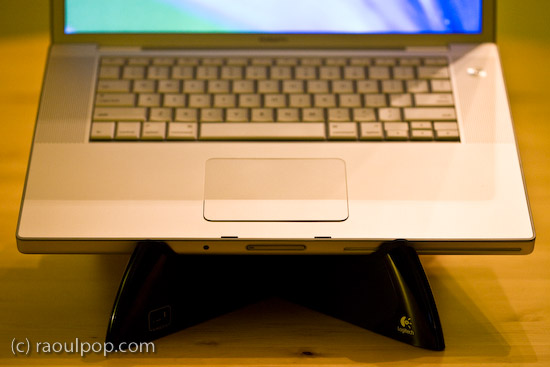
Oops… While I appreciate the need for a built-in USB hub (even a half-working one) on a laptop that has only 2 USB ports, I’m going to return this second stand. I’m not going to take my laptop off the stand every time I need to burn a CD or play a DVD. Incidentally, on the Logitech website, this stand is recommended for Windows, not Apple computers, but I bought both stands at the Apple Store, so I doubt Logitech intended it only for the PC market.

Otherwise, like I said, I really like this stand’s innovative design. It’s beautiful, functional and sturdy. It even has a built-in wire routing slot, which is a nice touch.
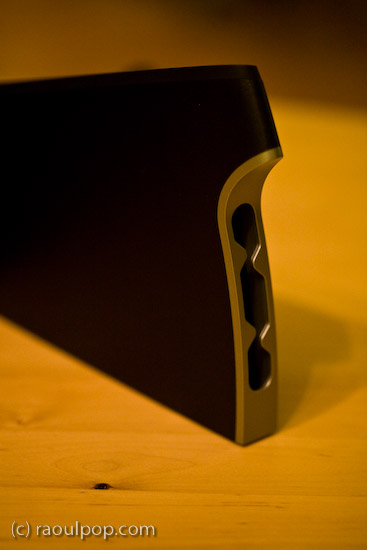
And let’s face it, it complements very nicely the design of just about any laptop.
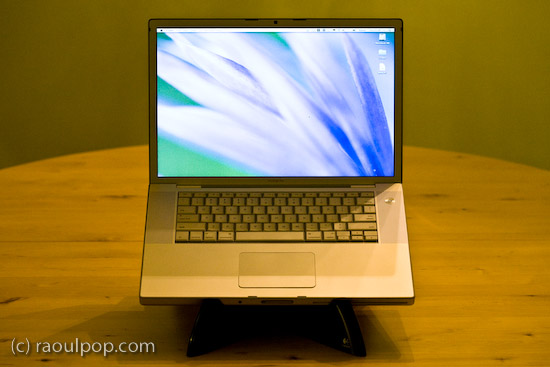
If you don’t have a MacBook Pro, and you don’t mind the USB surge issue with the built-in USB hub, then give this stand a try, you might like it quite a bit. Have a look at the other photos in the gallery below to get a better idea of its looks.

One more thing… The good thing about the way it raises the laptop is that the height of the front lip is low enough to let you type directly on the laptop without discomfort, but the height of the display is high enough for you to maintain proper posture. Of course, you can also use it with a separate keyboard and mouse if you’d like.

Buy the Logitech Alto

Standard
Lists

Condensed knowledge for 2008-03-08

Standard
Reviews

Lots to like about new MacBook Pro

On 2/26, Apple updated their entire MacBook line of laptops with better and faster hardware. I expected that announcement some time this month. I think they surprised most people by making it in February.

I’ve been waiting to purchase a MacBook Pro for some time, and with these latest updates to the hardware, Apple has made their laptops irresistible. Not only have they gotten faster processors, bigger hard drives and more video memory, but they also inherited the multi-touch trackpad from the MacBook Air, which should make it easier for me to work with my photos.

I wrote recently about my frustration with Apple’s less than transparent specs for its hardware. One of my points of contention was the display of the MacBook Pro. Well, I’m willing to forgo that point in view of the MBP’s plentiful other advantages. I need a fast laptop, desperately so, and my only choice if I want to run Mac OS X (which I very much want to do) is to get the MacBook Pro. (The regular MacBook doesn’t have the dedicated video card I need, and its display is too small for my eyes.)

I also know about Hackintoshes, but I’d rather stay on the legal side of things. I hope that at some point, Apple will decide to make OS X available on non-Apple hardware that meets stringent hardware compatibility tests, but for now, I can only get OS X on Apple computers.

15? MacBook Pro Laptop (2008)

I’m looking at the 15″ MBP, and it’s quite possibly the best laptop on the market in that size, barring a few issues that I’ll outline below. First, here’s the configuration that I plan to get. I’m very pleased with Apple’s new pricing. I can get this configuration for about $300 less than a comparable high-end config (2.4GHz/2GB RAM/200GB drive) on the previous 15″ MBP.

  • 2.5GHz Intel Core 2 Duo
  • 2GB 667MHz DDR2 SDRAM – 2x1GB (I plan to upgrade this to 4GB RAM with modules from OWC)
  • 250GB Serial ATA Drive @ 5400 rpm (I wish I could get a 300GB drive, but that’s only available on the 17″ MBP)
  • SuperDrive 8X (DVD±R DL/DVD±RW/CD-RW)
  • MacBook Pro 15-inch Glossy Widescreen Display
  • Apple Remote
  • iWork ’08 Preinstalled
  • Backlit Keyboard/Mac OS – U.S. English
  • AppleCare Protection Plan for MacBook Pro

Now here are the things that bug me.

No HDMI port

I don’t know why Apple still insists on DVI connections when HDMI ports are much smaller and carry both video and audio. The MBP would be perfect with an HDMI port, and I would be able to hook it directly to an HDTV and play movies with full digital video and audio directly from the laptop, without needing to connect both a bulky DVI cable and a separate audio cable. This sort of thing just doesn’t go with Apple’s design philosophy. An HDMI connection means less clutter and it’s simpler to use than DVI. Why not go to it?

Top lid is flimsy

Here’s a test for you. If you already have an MBP, press down on the center of the top lid (Apple logo or its immediate area) and see how much it caves in. That’s just not strong enough. The aluminum enclosure is too thin, and it’s not bolstered by cushioning underneath. It needs some support under there. It’ll easily dent and possibly damage the LCD if pressed or bumped lightly against something. I had an aluminum 17″ G4 PowerBook a couple of years back, and I remember its top lid being sturdier than the MBP’s.

Another problem caused by the flimsy top lid is that the keyboard ends up scratching the LCD when the MBP is transported. The simple act of holding the laptop under your arm or in your hand, or putting it in a case and hauling it around will put pressure on the lid and rub the LCD against the keyboard. Over time, the keys will leave scratches on the LCD. That’s not right. I’d rather not carry around a felt cloth and put it between the screen and the keyboard, like I’ve seen some people do. The lid should be made sturdier, and either the display or the keyboard should be sunk lower in the laptop frame, so there’s less likelihood of them rubbing together.

LCD is 6-bit color with dithering

It looks like most, if not all laptops, have 6-bit displays, with varying qualities of dithering engines and color capabilities. So while it’s unfortunate that Apple can’t pull away from the pack on this one and offer 8-bit color in its laptop displays, at least the MacBook Pro display is great to look at for extended periods of time and does a decent job of displaying colors properly, which is more than I can say about most laptop displays.

17? MacBook Pro Laptop (2008)

Bottom line

Other than the few things described above, I can’t find any faults with the new MBP laptops, and look forward (eagerly) to getting my very own soon.

[Photos courtesy of Apple]

Standard
Reviews

What I did in 2007

I made a concerted effort to write consistently and with substance in 2007. Product reviews are one of the foundational pieces of my site. I enjoy doing them, and people seem to enjoy reading them. I thought I’d highlight the most important ones from 2007 below.

Camera reviews (in chronological order)

The thing to keep in mind about my camera reviews is that for all but one of the reviews marked “full”, I used those cameras as my primary cameras for at least a month. That means they went with me wherever I went, so my understanding of how they work in real-world conditions is more than can be gotten from a lab review.

Lens reviews (in chronological order)

I also started reviewing lenses in 2007. Since I had to rent them in order to do this, I couldn’t very well keep them for a whole month, like I did with my cameras, but I did my best to make sure I put them through most conditions you’d encounter outdoors.

Hardware reviews (in chronological order)

I started doing hardware reviews as well, motivated by the problems I kept having with the products I had purchased. I wanted to tell people what to watch out for, and it looks like they appreciate hearing about it.

These were just a few of the articles I wrote during 2007. To browse through all of the posts from that year, use the Archives. Don’t forget to subscribe to my feed so you can find out about all of my new posts in 2008.

Thanks!

Standard
How To

A look at hard drives: finding the best deals

Given my recent push to find a feasible solution for my photo library, which resulted in the purchase of a Drobo (three, actually, but that’s beside the point), I’ve gotten to know a bit about hard drive prices. Here are my two cents on the issue.

Keep in mind that this advice is applicable only during the present time, since prices will continue to fluctuate and larger hard drives will become available, driving down the prices for the smaller ones. Let me also say that if you didn’t get your hard drives before, during or after Christmas, you missed out on some great deals.

Right now, the most economical drives (best size to price ratio) are the 500 GB ones. You can get great SATA drives with 16 MB caches (current standard size), 7,200 rpm and 3.0 GB/sec transfer speed at $120 (retail-boxed; OEM drives are cheaper).

If you must get a drive smaller than 500 GB, you can, but it’s not economical. The price per GB starts to go up once you go smaller. It’s about the economics of the thing. Regardless of the actual size of the drive, the price of the components and labor has to be factored in. Even if the drive is smaller in size, and it stands to reason that it should be cheaper, it costs money to put it together, and that cost is fairly inflexible. That’s why you may gasp when you look at the prices of 40 GB or 80 GB drives (if you can still find them) and you wonder why they cost so much when no one uses them anymore.

Back to bigger drives. I remember just 1-2 months ago, the 750 GB hard drives were double the price of the 500 GB ones, but the prices are coming down. In just another few months, or even less than that, they will close the gap and become the most economical drives you’ll find. That time isn’t here yet though. Right now, the least expensive 750 GB drives (retail-boxed) I can find start at $199. If 500 GB can be gotten for $100-120, then, proportionally speaking, 750 GB drives should be $150-180 in order to be as economical as the 500 GB drives. Not yet.

➡ Updated 2/27/08: The 1 TB (1,000 GB) drives have just dropped in price enough to be just as economical as the 500 GB drives. I’m very surprised that it’s happened this fast. The market has leapfrogged the 750 GB drives, as I thought it would. I’ve seen the WD 1 TB SATA drive pictured below for as as low as $230.

The 1 TB (1,000 GB) drivesaren’t economical yet, either. It’s likely that in 6 months or so, they’ll get to be great deals. It’s even possible that market forces will cause the prices to leapfrog over the 750 GB drives and push the 1 TB drives to the forefront. Right now, the least expensive 1 TB drive comes in at $260, which is more expensive than if you were to get two 500 GB drives. Keep in mind I’m talking strictly about the GB to price ratio here, not the convenience of having a single drive instead of two, which trumps the price difference somewhat.

Because I have a Drobo, I’m isolated somewhat from having to worry about whether I have a single drive or two drives. I can still get plenty of space if I stuff my Drobo with four 500 GB drives, then replace them with 750 GB or 1 TB drives later. Or, even better, I can take the wait and see approach. Right now, there’s plenty of space on the Drobo that stores my photo library, even with only two 500 GB drives inside. That means I can wait till the bigger drives get cheaper and buy an extra drive at that point.

Similarly, the Drobo that stores our movies and videos, plus our various other files, is doing just fine with three 500 GB drives. I don’t think I’m going to fill it up in the next month or two, and that means I can wait until the 750 GB drives, or maybe even the 1 TB drives, become economical.

With hardware, it’s about striking the balance between what you must have, and what can wait. Thankfully, even 500 GB is a ton of space for most people, so it’s a buyer’s market, as they say.

Another thing you can look at, once you know the prices of internal hard drives, is the prices of external drives. When you know how much an internal drive costs, you can subtract it from the cost of an external drive and figure out how much you’re paying for the enclosure and design alone, and whether it’s worth it to buy it.

This is why I said that the 500 GB LaCie drive was a bargain, and why I recommended that people buy it. Given that you can get a 500 GB drive for $100, and the drive costs $118 (at one point it cost only $109) you know this is a bargain. You’re paying only $18 to get the drive packaged nicely in a great USB 2.0 enclosure that makes no noise. Having fiddled around with plenty of enclosures in my time, I know a great deal when I see one.

By the same token, when you look at the G-Tech Quad Interface 500 GB drive, you know that’s not a bargain. When the drive itself costs only $100 and you pay $270 to get the drive and the enclosure, that means you’re paying $170 for just the enclosure and the quad interface. Is that worth it? You decide.

Don’t think I’m implying your decision has to be guided by price alone. While I dislike paying a premium for a product, I do it if I think it’s worth it. I think the Drobo is overpriced. I still bought three of them and I recommend them to others. I think Apple products are overpriced, but I still buy them and recommend them to others. (You’ll have to excuse my tone in that post — I was seriously irritated with Apple at the time, but what I said was true.)

It’s just that it’s worth knowing what you’re buying. If you’re going to spend your money on something, then you should do the research to back up your purchase decision. This is also why I’m steamed up about Apple’s non-transparency when it comes to their hardware specifications. I don’t know what I’m buying, and it bothers me. It doesn’t mean I don’t want to buy, it’s just that I’d like to know where my money’s going.

I hope this has been helpful to you.

Standard