
Less than a month ago, I reviewed the WD My Book World Edition II, a NAS device from Western Digital, and I promised that I’d also review the My Book Pro Edition II, which I also bought. Here are my thoughts.
❗ Updated 12/13/2007: Before I say anything else, I need to discourage you strongly from buying this drive. There are MANY flawed units of this drive on the market. There are serious problems with cooling, which result in excessive fan noise and even random drive shutdowns while in use. Scroll to the end of the review to read the updates and see what sorts of problems I’ve had with the drive.
Design
The Pro Edition II should be a better and faster external hard drive than the World Edition II when it comes to working with my photo library, since it connects directly to my computer instead of going through the network. Its exterior design is just as good as that of the World Edition II, and the photos enclosed below will show it.
I have to confess that I’m design-obsessed. If something looks good, I’m willing to overlook the fact that it may not work as expected, which is definitely the case with this device. Of course, if it were truly designed well, it wouldn’t have the serious problems that it has, but at least it looks good on my desk… I suppose I could call it a very expensive paperweight. It’s so unfortunate that Western Digital couldn’t deliver with this product. It looks so nice, and does so poorly…
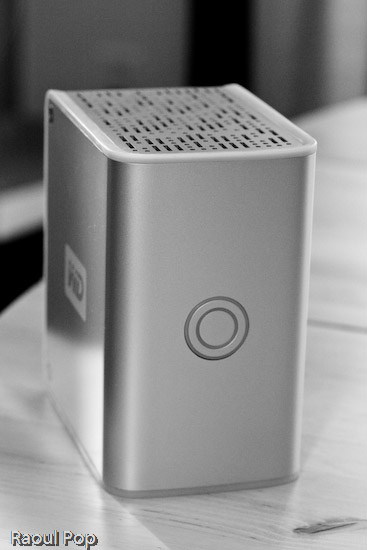
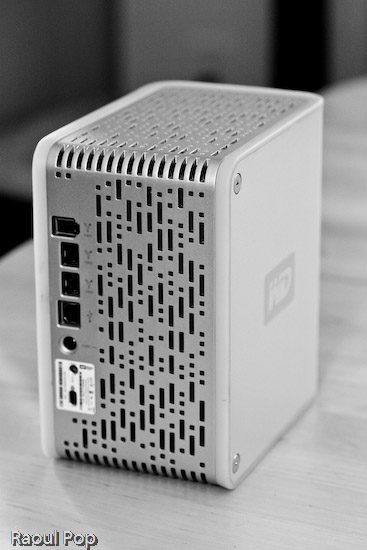
The drive has three interfaces: USB 2.0, Firewire 400 and Firewire 800. A nice touch is the inclusion of two Firewire 800 ports. This is probably because most computers have only one Firewire 800 port, and the WD engineers wanted to give us the ability to daisy-chain other devices onto the drive. In terms of the RAID settings, it has RAID 0 and RAID 1. I’m using my drive in RAID 1, to get the data redundancy I need when it comes to my photo library.
Serious problems
I’ve read complaints about the drive being loud, and I agree. I’ll say this: when it works fine, it’s quiet. When it has problems, it’s VERY loud. There are persistent cooling issues with the drive, that have been partially solved through firmware updates, but they keep showing up even on later builds. I think the WD engineers still have a LOT of work ahead of them when it comes to this model. See below for more on this.
My workflow involves working mainly with Adobe Lightroom, and doing the following:
- Importing and viewing RAW files
- Winnowing
- Adding meta data
- Editing images and
- Exporting them to JPG files for the web or for clients
The drive is usually fine with this, but if I spend more than an hour (and sometimes, even less than an hour in Lightroom), it’ll start to overheat. Then the fan speed will auto-switch to what I call “medium speed”, and the drive will get a little louder. If after a few minutes or so, I’m still not done working, the drive fan will kick into high gear, something that I and others call “hairdryer mode”. After a couple of minutes at that speed, the drive will either return to “medium speed” or shut off completely, leaving me and Lightroom wondering where the photo library went.
I’ve learned to save my work and exit Lightroom when the drive fan goes into “hairdryer mode”, because I can almost certainly expect the drive to shut off. I called WD Support on this, and I applied a firmware fix a few weeks ago, but the cooling problem is still there. By the way, the drive has to stand vertically at all times, or you’ll have even more serious cooling problems.
Getting support
I need to say that WD Support are responsive, but they live in serious denial. They will agree to an RMA, but they insist that these drives are just fine, which is definitely NOT the case. Speaking from personal experience, WD Support is better than the support I’ve gotten from other tech companies like Microsoft and HP. At least they try to be helpful and polite. This was one of the main reasons I stuck with the drive through serious, repeated problems.
As I stated at the start of this post, I continue to have problems with my drive, even after two replacements. I like the design, and I like the fact that it has three interfaces. But I cannot use it long-term, because, let’s face it, it’s an unreliable piece of crap, and it’s very frustrating to use it when it overheats and crashes my computer. I’ve already bought a Drobo (which I love) for my photo library, and I’m going to re-purpose this drive to store some other files.
Working with the drive
In my review of the My Book World Edition II, I mentioned how I’m in a mixed OS environment at home. I have both an iMac and a Windows laptop. It’s necessary for me to be able to read and write to my external devices from both computers. This is in case I do large file transfers, which are obviously a lot faster to do over a USB or Firewire connection than a wireless network. So what I did to solve this problem was to format the My Book Pro Edition II in the Mac file system (HFS+ Journaled). Now I can read and write just fine to it from both machines because I purchased MacDrive, a piece of software that lets you access Mac drives on Windows as if they were NTFS or FAT32 volumes.
Let’s review
I like the drive, and the design, but it has SERIOUS quality control problems and manufacturing defects. Make sure to read through the Updates section below for the latest news on the drive, and remember to spare yourself the agony I’m going through by NOT buying it.
Updates
❗ Updated 10/30/07: It turns out the cooling problems with my drive weren’t normal. After calling WD Support a second time, I was offered an RMA. They sent out a replacement drive to me via 2-day Fedex, free of charge, and let me keep my old drive for a month while I transferred my photos over to the new drive. During that month, I worked exclusively on the new drive, to make sure that it wouldn’t overheat and shut off anymore. While it goes into “hairdryer mode” once in a blue moon, the fan speed always returns to “low speed”, which is barely audible, and the drive never shuts off. Whatever problems existed in the earlier builds of this drive, WD fixed them, and the new drives work just fine. If you’re having cooling problems with your My Book Pro, I encourage you to contact WD Support and see if you can exchange it.
❗ Updated 12/03/07: I’ve just arranged to receive my 2nd replacement drive from WD via RMA. While I like the consistently high level of customer support they provide, I have to point out that there are manufacturing defects that still haven’t been ironed out. While my first drive, the one I purchased from a store, only overheated, and worked okay otherwise, the replacement drive had three problems. It also overheated, although less often than the original drive. Its Firewire 400 connector didn’t work. I tried different cables, to no avail. The computer just didn’t see it while it could see other Firewire drives just fine. Most importantly, it kept crashing my iMac every time I connected it. Not right away, but within minutes or less than an hour, it would crash the system so badly that I’d have to reset it. I’d get the standard Apple screen of death with a message that asked me to reset the computer. When I’d look at the logs, they’d always point to the USB as the problem for the crash, and the only drive I had connected via USB was the My Book Pro. Let’s hope this third drive that WD will send me will finally work properly.
❗ Updated 12/13/07: As stated at the top of this post, DO NOT buy this drive, for the reasons already detailed. I am NOT alone in having problems with this drive. Many Mac users are having the same problems with it, and you can see this by doing a search on the Apple forums for “My Book Western Digital“.
The drive also DOES NOT work as advertised. The specs say it works with USB, Firewire 400 and Firewire 800, but it DOES NOT work with Firewire 400. I have not had the chance to test it with Firewire 800, so I can’t speak about that, but I know for sure that Apple computers cannot see it when connected through Firewire 400. It does work with USB, but it tends to crash Apple computers when connected to them through that protocol. Trust me on that last bit, I’ve checked the error logs every time and confirmed it reliably — it’ll crash my iMac, which runs Leopard (the latest Mac OS X), when connected through USB, while other USB or Firewire drives can connect just fine and have no problems. Have a look at this article of mine for a video of the crashes it causes, and for photos of the damaged drives that WD sends out as replacements.
Western Digital is also NOT doing a good job testing these drives before they send them out. I’m now on my third replacement drive from Western Digital (My Book Pro), and it exhibits the same problems: overheating and NOT working with Firewire 400. Western Digital Support refuses to believe it and continues to stubbornly cling to the idea that the drive works just fine since it can connect through USB. They offered to send me out another replacement drive, and I refused. I’m not going to spend my entire life swapping drives and data until Western Digital decides to get their manufacturing and quality control processes in order.
I also want to mention that the re-certified drives they send out can be scratched, scuffed and smudged. They are NOT cleaned, and Western Digital simply DOES NOT care if they send you a drive in bad aesthetic condition. My re-certified drives arrived in progressively worse condition, to the point where this last replacement drive looks absolutely horrible. It looks like it’s been banged up and dragged on the floor. It’s got oily smudge marks on its sides… basically, it’s a mess.
DO NOT BUY this drive unless you want to run into the problems I’m having right now, and believe me, it’s not fun at all. Western Digital needs to get its act in order on this model, because they’re churning out some real duds.
➡ Updated 7/3/08: I updated my other post about the My Book Pro as well with the following information.
On 4/16/08, I received a replacement drive from Western Digital. It’s a 2TB Studio Edition II drive, which works in USB, Firewire 400/800 and eSATA modes. I’ve been using it since in RAID 0, and it’s been working great. To see how I use it, read this recent post of mine, where I talk about the hardware I use on a daily basis. I also plan to write a detailed review of the drive shortly.
I guess the lesson is that the My Book Pro line had serious faults, and WD got things right with the My Book Studio line. So, if you’re in the market for a drive, DO NOT get a My Book Pro. But DO get a My Book Studio drive. They seem to work alright.






 Raoul Pop