Reviews

Windows Family Safety

Windows Family SafetyWindows Family Safety (WFS) is a new offering from Microsoft that aims to offer protection from questionable or indecent websites to families or individuals. I tried it out for a couple of weeks, and found it to work fairly well, except for a few hiccups here and there.

It is a software-based internet filtering mechanism. The difference between a software-based internet filter and a hardware-based one is that the software needs to be installed on every computer where filtering is desired. A hardware-based internet filter is usually self-contained in a box or appliance that gets placed between the user’s internet connection and the internet. The benefit of such an appliance is readily seen. There’s nothing to install on client computers. Unfortunately, hardware-based solutions have been fairly expensive, historically speaking.

Software-based internet filtering has also cost money, until now. As a matter of fact, Microsoft used to offer one such software-based solution with its premium MSN service. Windows Family Safety may be that same offering, repackaged as a free service.

Having used other software-based internet filters, I can tell you Windows Family Safety is a lot easier to use, and much less annoying than paid products. Those other services, who don’t even deserve to be called by their names, were just plain awful. I had to authenticate every time I tried to access a website, and logins didn’t even take at times. What’s worse, if a single website called out to other websites to display information, as is so common these days, I had to authenticate for every single request. They were a nightmare, and I quickly uninstalled them.

Windows Family Safety requires a simple install, and the selection of a master account which can set the level of access for that computer. It uses Microsoft Passport sign-ons, which means I was able to use my Hotmail account to log in. After that, it was a matter of logging in every time I turned on my computer or came back from standby. This was one area where I encountered a hiccup though. The software had an option to allow me to save my username and password, so I wouldn’t have to enter them so often, but that option didn’t seem to work. I was stuck logging in much more than I cared to do, but still, this was nothing compared to the torture I went through with other software-based filters — as already mentioned in the paragraph above.

Just how does WFS work? It turns out that it uses a proxy to filter the traffic. It means that every time you make a call to a website, that call first goes through the WFS servers, where it gets matched to their content database and the website deemed to be appropriate for the level of safety that you’ve chosen. Here’s where I encountered two hiccups.

The first was that at peak times, the speed of my internet connection was slowed down to a crawl until it could pass through the fairly busy proxy servers and be filtered. That was really annoying, but I assume that’s going to get better as MS dedicates more proxy servers to the service. Perhaps it might be better to download content filters directly to each computer and filter the traffic locally, so the chance of a bottleneck is reduced or eliminated.

The second was the seemingly arbitrary designation of some sites as inappropriate. I chose to filter out adult, gambling and violent websites. Somehow, both of my blogs (ComeAcross and Dignoscentia) didn’t meet that standard, which was very surprising to me. Neither of those sites can even remotely be classified under those questionable categories. Fortunately, there’s a fairly simple process for requesting that a site be reconsidered for proper classification, and it’s built into the Windows Family Safety website. I followed the procedure, and within days, my sites were properly classified. But the fact that I had to go through all of that makes me wonder how they’re classified in the first place.

Overall, I found that WFS still hasn’t gotten proper branding. What I mean by that is that it’s not clearly identified as a product by Microsoft. The Windows Live OneCare Family Safety website is part of the Live Family of sites, true, but it’s not even identified on most of the other sites in that family (Hotmail, SkyDrive, etc.) I also found that configuring one’s WFS account can be pretty unintuitive, as the navigation on the WFS site is cumbersome and lacking focus (much like the Windows Live OneCare site, come to think of it.) I even got code errors when I tried to surf through it recently, which is not what I expected from a public MS site.

On a general note, Microsoft really needs to do some work in associating each MS product with the Windows Live account that uses it, and making it easy for each user to access the online/offline settings for each product. Google does a great job with this, and MS could stand to learn from them here.

Windows Family Safety is a good solution, and it works well considering that it’s free. If you’re looking to set up some easy internet filtering at your home, it could turn out to work great for you. Give it a try and see!

Standard
Thoughts

Photography, take two, part two

I continued to work on replacing photos hosted with third party services. The list of modified posts is provided below. This has proven to be a huge effort. I had to locate the photos in my digital library — not all of which is keyworded yet, though I’ve got location information for all my photos — but I also chose to re-process, keyword and re-title the photos. You see, most of these photos were keyworded through bulk uploaders, for the purpose of displaying that data on third party photo sharing sites, not for my own library. Clearly that effort was wasted, but I didn’t know that back when I did it… Where applicable, I am also re-writing some of the text.

I want to make sure that the content I provide here at ComeAcross is truly top tier, as much as possible. What does that mean? Well, it means I spent my entire weekend, including Monday, working on the posts listed below, and on the posts listed in part one. I still have more posts to go. I don’t mind doing this — actually, I look forward to it — but I do hope that you, the reader, appreciate the effort that goes on behind the scenes. 🙂

Also see Photography, take two, part one.

Standard
Thoughts

Photography, take two

Over this weekend and the last several days, I’ve gone through posts that contain photographs, and replaced all of the images with ones hosted directly at ComeAcross. In the past, I’ve used photos hosted with third party photo sharing services, and I realize now that’s a folly.

If a third party service goes down, which is very likely with beta services, my photos become unavailable. Even if that service is not in beta, a simple action like closing one’s account shuts down access to all of the photos uploaded there. It’s much more practical to host the photos together with my website. That way, I am fully responsible for making sure that all of my content is accessible. If something goes down, I can take care of it. If I need to change web hosting providers, I simply transfer all of my files over to another server.

It’s not as simple to transfer one’s content with photo sharing services, no matter what they may promise. Image and meta data portability is still not 100% there, and it doesn’t help when a photo sharing service advertises their API’s availability for more than a year, yet fails to put it out for public use. It also doesn’t help when said portability is rendered useless by the amount of compression used on the uploaded originals, or the deletion of meta data embedded in the originals…

You see, everyone is ready to promise the world to you when they want to sell you on something. Quite often, that “world” is nothing more than an empty little shell. I speak in general terms here, from the things I’ve learned through my various experiences — mostly recent ones…

At any rate, I’ve still got to modify a number of posts, but I thought I’d point out the ones I’ve already worked on. They’re quite a few, and I’m happy with the results so far. Here they are:

Also see Photography, take two, part two for more updated posts.

Standard
Reviews

Hardware review: WD My Book World Edition II

After looking around for a storage solution to house my growing collection of photographs, I found the Western Digital My Book World Edition II. I’ve been storing my photos on single external hard drives so far, but data loss has always been a concern with that approach. All it takes is a hard drive failure, and I’m going to lose a good portion of my hard work. Naturally, I’ve been looking into various RAID or other failsafe solutions, since they’ve gotten to be fairly affordable.

Great design

I was immediately drawn to the new WD My Book line because of their beautiful design, 1 TB capacity, and the ability to configure the device in RAID 1 format, which would mean my data would be mirrored across the two hard drives inside it. (This would also halve the amount of space available, but that was okay with me — I wanted data redundancy.)

WD My Book World Edition II (front)

For those of you not familiar with WD’s external drives, they have done a beautiful job with their enclosure design, and I raved about their Passport line several months ago. It turns out I now own one of them, a sleek black 160 GB 2.5″ drive just like the one pictured in that post. It’s perfect for data portability, and for a while, I even stored some of my photos on it. But it is just a single drive, and as I said, I’m worried about data loss.

Choosing the product

Back to the My Book line. There were two models I really liked: the My Book Pro and the My Book World. Because I have a mixed OS environment (both PC and Mac), I thought a NAS solution like the My Book World would work best for me, even though its specs said it would only work for Windows. I had a pretty good hunch that I would also be able to access it with my iMac. It runs on Java, it has Samba shares, and those are readily accessible from any Mac. But, this isn’t advertised, and that’s a pity.

By the way, if you’re thinking about getting the My Book Pro drive, make sure to read my review of that model. The takeaway message is to stay away from it, and I explained why in that article.

How it works

The drive itself is beautiful and fairly quiet, except when it boots up. WD has also made firmware upgrades available that make the drives even quieter, so that’s a good thing. I can tell you this right away. If you only plan to use the drive in a Windows environment, it’ll work great. Feel free to buy it, you’ll be happy. But, if you plan to use it in a mixed OS environment, and are looking to access it in more flexible ways, such as with custom drive mappings, and not through the software provided with the drive, you might be very frustrated.

Let me explain. The drive comes with a custom version of something called Mionet. I’ve never heard of it, but it’s software that installs on your machine and makes your files and computer remotely accessible from anywhere. When you run the installer, it’ll prompt you to create an account on the Mionet website, and it’ll register the WD drive, along with your computer, as devices that you can then access remotely. (There’s a monthly fee involved if you want to control your own PC remotely with the software, but you don’t need to pay it to use the WD drive fully.)

Once you install the software, you start up Mionet, and the WD My Book World drive gets mapped automatically to your machine. You also have the option to manage the drive through a browser interface. That’s actually where you configure its volumes (1 TB single volume, or RAID 1, still single volume, but mirrored data and only 500 GB) and other options. Basically, you have to remember that the only proper way to access the drive, whether you’re at home or you’re away, is to start up Mionet and get it mapped to your “My Computer”. If you do that, you’re good to go.

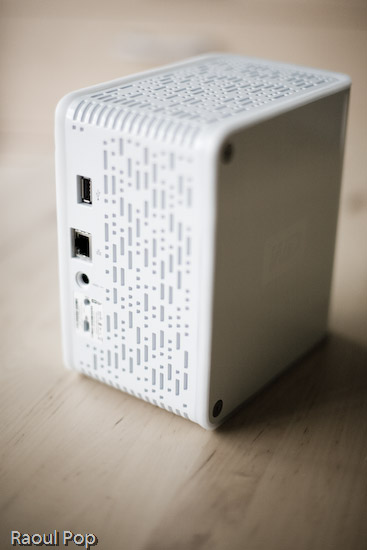
WD My Book World Edition II (back)

Potential problems

The problem with this approach (and this tends to be a problem only for geeks like me) is that the drive is readily accessible over the network without Mionet. I can simply browse my workgroup and find it, then log in with separate accounts I can set up by using the WD drive manager, which is accessible through my browser. So here’s where the frustrating part comes in. I can browse to my drive over the network, without Mionet, from any PC or Mac in my home, administer its options, add users and shares, etc. Then I can use Tools >> Map Drive on my PC or Command + K on my Mac to connect to the share name, and log in using those user accounts I’ve just set up. But, I can only read from those shares. I can’t write to them. The drive operating system assigns weird UNIX privileges to those shares, and they don’t correspond to the accounts I’ve just set up. It makes no sense to me and you’ll only fully know what I mean if you do this yourself. Suffice it to say that it’s really frustrating, and it’s not what I expected.

It would have been alright if Mionet made a version of their software for the Mac, but they don’t, and they don’t seem to have any plans to make any. It would have still been alright if the drive hadn’t been accessible through any Mac whatsoever. But the fact that they are accessible, and that I can log onto the drive with usernames and passwords that I can set up through the admin interface, yet I can only gain read-only access to those shares even though I’m supposed to have full access really gets me. Sometimes it’s a real pain to be a geek…

So, my verdict is that I really like the design and the RAID 1 capability, but I do not like the implementation. I ended up returning this and getting the My Book Pro Edition, which I love, and will review very soon. But remember, if you don’t have a mixed OS environment, and have no problems with starting up Mionet when you want the drive to appear in “My Computer”, My Book World will work great for you, and the remote access capability is a really nice feature.

Updates

Updated 7/19/07: I purchased and reviewed the My Book Pro as well. You can read my review right here.

Updated 8/3/07: Multiple commenters have pointed out (see this, this, this, this, this and this) that you can use the drive just fine with both Macs and PCs, over the network, if you skip the install of the Mionet software altogether. It looks like the clincher is the Mionet install itself. Just forgo it, and you’ll be able to map the drive to both PCs and Macs, and read/write as much as you want. I didn’t realize that I had to uninstall Mionet entirely in order for the read/write to work properly.

But keep in mind, if you don’t use the Mionet software, you won’t be able to access the drive remotely. Well, you might be able to arrange some access, but you’ll need to custom-configure your firewall settings to allow traffic on certain ports, and you’ll need a static external IP or dynamic DNS so you can get at your firewall from the outside. And then you’ll need to worry about data encryption as well, unless you don’t care that your data will travel unencrypted over open networks. If you’re a hardcore geek, feel free to try this last bit out, but if you aren’t, beware, it’s a weekend project, and I can’t help you.

Updated 8/9/07: I’ve had several people comment on how they bought the drive based on this post and the comments made on it by others, believing they could get it working over the network with their Mac. The kicker is that they thought they could connect it directly to their machine and get it working that way. 😐 I don’t know how they got that idea, but let me set the record straight. This is a NETWORK drive. It needs a network in order to work. There’s a chance you might get it working by using a crossed ethernet cable or connecting it directly to your machine, but it probably has to be a crossed ethernet cable.

The best way to get it working is to use a hub or a switch, or best of all, your home router, which can assign IP addresses. The drive ships configured for DHCP. That means it has no IP address to start with, and it’s looking for a place to get them. If you don’t have such a place, you’re going to have a lot of headaches. Get such a place (router) or go buy a USB/Firewire drive. Most people who’ve commented already made it plainly clear that’s what they needed, but they still insisted on using this drive. I don’t know why they enjoy the stress of doing that. I didn’t. As I already said in my post, I returned it and got a WD My Book Pro Edition II.

Last but not least, please do me a big favor. Read through the existing comments before you write one. There are so many already, and there’s a very good chance someone’s already asked your question, and I or someone else has already answered it. Thanks!

Updated 12/11/07: I found out today that Western Digital is going to disallow the sharing of all media files through the Mionet software. In other words, if you’re going to use Mionet to share the files on your drive and make them accessible remotely, you will not be able to see or use any of your media files. I think this is a pretty stupid move on WD’s part, and it’s going to come back to bite them. Until they decide to do away with this boneheaded downgrade, keep it in mind if you’re looking to purchase a My Book World Edition. Do NOT use Mionet. Install the drive without it, and if you’ve got to make the files accessible remotely, find other ways to do it, like through a custom config of your firewall.

Updated 12/18/07: Christian, one of the commenters, has left two very useful comments that are worth mentioning here in the post. The first shows you how to access the drive remotely (when you’re away from home) without using the Mionet software. The second tells you why you don’t need to worry about defragging the drive, and how to troubleshoot its performance if you think it’s not as fast as it should be. Thanks Christian!

Updated 4/5/10: Andrew Bindon has posted an easy-to-follow tutorial on how to remove Mionet completely from your computer and the My Book World Edition drive. If you, like me and many others, think Mionet is an annoyance that would best be removed, then follow his advice.

More information

Standard
Reviews

Flickr tightens up image security

Given my concern with image theft, I do not like to hear about Flickr hacks. A while back, a Flickr hack circulated around that allowed people to view an image’s full size even if the photographer didn’t allow it (provided the image was uploaded at high resolution.) The hack was based on Flickr’s standard URL structure for both pages and image file names, and allowed people to get at the original sizes in two ways. It was so easy to use, and the security hole was so big, that I was shocked Flickr didn’t take care of it as soon as the hack started to make the rounds.

It’s been a few months now, and I’m glad to say the hack no longer works. I’m not sure exactly when they fixed it. Since it’s no longer functional, I might as well tell you how it worked, and how they fixed it.

D

First, let’s look at a page’s URL structure. Take this photo of mine (reproduced above). The URL for the Medium size (the same size that gets displayed on the photo page) is:

http://flickr.com/photo_zoom.gne?id=511744735&size=m

Notice the last URL parameter: size=m. The URL for the Original size is the same, except for that last parameter, which changes to size=o. That makes the URL for the original photo size:

http://flickr.com/photo_zoom.gne?id=511744735&size=o

Thankfully, that no longer works. If the photographer disallows the availability of sizes larger than Medium (500px wide), then you get an error that says something like “This page is private…”

Second, they’ve randomized the actual file names. So although that image of mine is number 511744735, and it stands to reason that I would be able to access the file by typing in something like http://farm1.static.flickr.com/231/511744735_o.jpg, that’s just not the case. Each file name is made up of that sequential number, plus a random component made up of letters and numbers, plus the size indicator. So the actual path to the medium size of the image file is:

http://farm1.static.flickr.com/231/511744735_b873d33b12_m.jpg

This may lead you to think that if you can get that random component from the URLs of the smaller sizes, you can then apply the same URL structure to get at the larger size, but this is also not the case. It turns out that Flickr randomizes that middle part again for the original size. So although it stays the same for all sizes up to 1024×768, it’s different for the original. For example, the URL for the original size of that same photo is:

http://farm1.static.flickr.com/231/511744735_d3eb0edf2d_o.jpg

This means that even if you go to the trouble of getting the file name for one of the smaller sizes, you cannot guess the file name of the original photo, and this is great news for photographers worried about image theft.

While I’m writing about this, let me not forget about spaceball.gif, the transparent GIF file that gets placed over an image to discourage downloads. It can be circumvented by going to View >> Source and looking at the code to find the URL for the medium-size image file. It’s painful, but it can be done, and I understand there are some scripts that do it automatically. The cool thing is that after Flickr randomized the file names, it became next to impossible to guess the URL for a file’s original size. The best image size that someone can get is 1024×768, which might be enough for a 4×6 print, and can probably be blown up with special apps to a larger size, but still, it’s not the original.

Perhaps it would be even better to randomize the file name for the large size as well, so that it’s different from the smaller sizes and the original size. That would definitely take care of the problem. Still, this is a big step in the right direction.

Standard