How To

My own sort of HDR

I’ve been intrigued by HDR (High Dynamic Range) post-processing for some time. At its best, it renders incredible images. At its worst, average, and even good, it renders completely unrealistic, overprocessed, unwatchable crud. Even some of the best images made with HDR methods seem weird. They’re not right — somehow too strange for my eyes. But, I did want to try some of it out myself and see what I’d get. The challenge for me was to keep the photo realistic and watchable. I wanted to enhance the dynamic range and color of my photos in an HDR sort of way. I also didn’t want to sit there with a tripod taking 3-5 exposures of the same scene. As much fun as that sounds, I don’t always carry a tripod with me.

By way of a disclaimer, I have not researched the production of HDR-processed images thoroughly. I have, however, seen a boatload of HDR images on both Flickr and Zooomr. I did read the tutorial that Trey Ratcliff posted on his Stuck in Customs blog. Of course, we all know Trey from Flickr, where he posts some fantastic HDR images on a daily basis. So, given my disclaimer, realize I don’t say I’m the first to have done this. I’m just saying this is how I worked things out for myself. If indeed I’m the first to do this, cool! If not, kudos to whoever did it before. I’d also like to encourage you to experiment on your own and see how things work out for you. Change my method, build on it, and make something even better. While I’m on the subject, I’m not even sure I should call this processing method HDR. It’s more like WCR (wide color range). What I’m really doing is enriching the color range already present in the photo while introducing new color tones.

When I started, I experimented with Photoshop’s built-in Merge to HDR feature. Using Photoshop, after a few non-starts that I deleted out of shame, I got something halfway usable. Have a look below.

Brook and rocks

Here’s how I processed the photo above. I shot three exposures of that scene in burst & bracket mode, handheld (no tripod), in RAW format. Then, I darkened the low exposure, lightened the light exposure, and exported all three to full-res JPGs. Used Merge to HDR in Photoshop, got a 32-bit image, adjusted the exposure and gamma, converted to 16-bit, adjusted exposure, gamma, colors, levels, highlights, then smart sharpened and saved as 8-bit JPG. It came out okay — not weird, at least not too much, anyway, but still not to my satisfaction. I should mention I also used a sub-feature of the Merge to HDR option that automatically aligned the images. As I mentioned, I shot handheld, and there were slight differences in position between the three exposures. Photoshop did a pretty good job with the alignment, as you can see above. It wasn’t perfect, but definitely acceptable.

I know there are people out there saying Photoshop doesn’t do as good a job with HDR as Photomatix. It’s possible, although I got decent results. Maybe at some point in the future I’ll give Photomatix a try, but for now, I’m pretty happy with my own method — see below for the details.

But first, what’s the point of HDR anyway? When I answered that question for myself, I started thinking about creating my own (WCR) method. The point as I see it is this: to enhance the dynamic range of my images. That means bringing out the colors, highlights and shadows, making all of the details stand out. Whereas a regular, unprocessed photo looks pretty ho-hum, an HDR-processed photo should look amazing. It should pop out, it should stand out in a row of regular images. It should not look like some teenager got his hands on a camera and Photoshop and came up with something worthy of the computer’s trash bin. As I’ve heard it from others, the standard way to postprocess a scene in HDR is to take 3-5 varying exposures, from low to high. Those exposures can then be combined to create a single image that more faithfully represents the atmosphere and look of that scene.

But, what if you don’t have a tripod with you? Can’t you use a single image? Yes, you can shoot in RAW, which is the equivalent of a digital negative, and good HDR software can use that single exposure to create multiple varying exposures, combine them and create an image that’s almost as good as the one made from multiple original exposures.

What if you want to make your own HDR/WCR images, in Photoshop, all by yourself? I wanted to do that, and I think I arrived at a result that works for me. Here’s what I did. I took a single exposure of a brook in the forest, which you can see below, unprocessed.

Brook, unprocessed

There’s nothing special about this photo. It’s as the camera gave it to me, in RAW format. The colors are dull and boring. There’s some dynamic range, and the color range is limited. It’s all pretty much made up of tones of brown. I took this single exposure, converted it to full-res JPG (but you don’t have to, you can use the RAW directly,) put it in Photoshop, created three copies of the original layer, called them Low, Medium and High, then adjusted the exposure for Low to low, left the exposure for Medium as it was, and adjusted the exposure for High to high. Then I set all of them to Overlay mode. (The original JPG, preserved in the Background layer, was left to Normal mode and was visible underneath all these layers.) The key word when talking about exposure here is subtle. Make subtle changes, or you’ll ruin the shot.

As soon as I adjusted the layers and changed them to Overlay, things looked a lot better. The dynamic range was there, it just needed to be tweaked. So I went in and adjusted the individual exposures for each layer some more to make sure parts of the photo weren’t getting washed out or ended up too dark. Then I threw a couple of adjustment layers on top for levels and colors. Finally, I duplicated the three layers and merged the duplicates, then used the smart sharpen tool. The adjustment layers were now on top of it all, followed by the merged and sharpened layer, and the three exposure-adjusted layers, which were no longer needed, but I kept them in there because I like to do non-destructive editing. Here’s the end result, exported to a JPG.

Brook, processed

This is the sort of post-processing that pleases my eye. The details were preserved, the colors came out looking natural yet rich, and things look good overall. Even though some spots are a little overexposed, I like it and I’m happy with it. Let’s do a quick review. Using my own WCR/HDR-like method, I accomplished the following:

  • Used a single RAW/JPG exposure
  • Didn’t need to use a tripod, could shoot handheld
  • Didn’t need special software, other than Photoshop
  • Achieved the dynamic range I wanted
  • The photo looks natural, at least to my eyes
  • The post-processing was fairly simple and took about 30 minutes

There is one big difference between my WCR method and the usual HDR post-processing. Done right, the latter will help bring detail out of the shadows. Because of that single or multiple exposure done at +2 EV or more, spots that would normally be in the dark in a regular photo can be seen in HDR. Not so with my method. Here the darks become darker. The atmosphere thickens. The highlights become darker as well. The whole shot gains character, as I like to call it. So this is something to keep in mind.

Just to clarify things, the image above was the first result I obtained using my method. There was no redo. I then processed some more images, and got a little better at it. It’s worth experimenting with the Shadow/Highlight options for each individual layer. It helps minimize blown-out spots. It’s also very worthwhile to play with the Filter tool for each layer. This really helps bring out some nice colors. It’s sort of like taking three exposures of the same scene with different color filters. The results can be stunning if done well. You also don’t need to use three overlays. It all depends on the photo. Some photos only need one overlay, while others need four or five. Subtle changes in exposure can help bring out areas that are too dark. You can see some photos below where I used my own advice.


Brook, take two, processed

Meeting of the minds

Parallel lines

There you are

I hope this proves useful to those of you out there interested in this sort of post-processing. It’s my dream to see more natural and colorful photos, regardless of whatever post-processing method is used.

Standard
Thoughts

It's got to be automated

I’ve just helped a friend get her laptop going again (I hope). She called me asking for help because Office couldn’t open some documents properly for her, and on top of that, her computer was acting strangely. It turned out she needed an extra feature from the Office CD installed, so I did it. But, while I did that, I discovered that she had a virus infection. When I connected her laptop to the Internet to update the antivirus definitions, it turned out that Symantec couldn’t update itself — possibly due to the virus. I decided to run a full system scan (she couldn’t remember the last time she did that), and found another virus. I left it running while I backed up some of her important documents to a flash drive and asked her to work on them on another computer. It remains to be seen whether that laptop will recover from the infection or not.

But this only served to underline the glaring problems of basic computer security that everyday users have to face. They may have antivirus software, but they don’t use it, nor do they update it regularly. They may have heard that it’s good to back up your files, but they don’t do it, or when they do it, it’s haphazard. A casual dragging of some files onto a flash drive, the burning of a CD with some important files, etc. They’ve also heard about spyware, but I guarantee you that most don’t have antispyware software installed, nor do they run it regularly. And that’s the rub! You can have even a brand new system, but it can still get infected and you can lose all your data. Or worse, some spyware will run through your files, picking out financial information, and you’ll find yourself with no money in the bank, or with your 401k account depleted. It’s happened, it’s been in the news, none of this should be new to anyone. But what do regular computer users (non-techies) do? They go right on using their computers as if they’re immune from this.

This is why I applaud both Microsoft and Apple for introducing software that backs up files automatically, and also runs regular antivirus and antispyware checks (these last two features only apply to Microsoft’s software). Microsoft introduced OneCare Live late last year, and it does everything regular users need it to do. I actually run it on my own laptop as well. Not only does it do all this automatically, but it’ll nag the user if there’s some action that needs to happen on their part. For example, it nagged me that I wasn’t backing up my files, and it continued to do so until I connected a USB drive to my laptop and set it to back them up to that location automatically. On top of all this, it also runs a defrag and cleans up my laptop of temp files. OneCare’s messages are color-coded, so even the simplest of users can figure out when something’s wrong. When everything’s fine, it’s green. When something needs to happen, it’s yellow. When things are bad, it’s red. It’s hard to miss the point.

When Apple releases the next version of OS X (code-named Leopard), it’ll include automatic backup software that’ll let you go back in time to various versions of files, or recover deleted files. It’s a huge step in the right direction (the interface itself is fantastic) considering that Apple has so far had only .Mac and its Backup software, but you had to pay $99 for .Mac to be able to use Backup. That was a silly arrangement. Apple’s also been lucky so far because there are very few viruses and spyware built for OS X, but that will by no means be the norm as their platform gains more users. I also don’t like the fact that there’s no defrag software built into OS X. Apple actually advises against defragmentation. Well, whether they want to recognize it or not, the contents of the hard drive will get fragmented over time, and it doesn’t matter whether a computer runs Windows, OS X or Linux; it’ll need to be defragmented sooner or later. I’d like to see some defrag utility from Apple, sooner rather than later. I’d rather not have to reformat the computer in order to get my bits organized.

I also appreciate that both Apple and Microsoft have moved to delivering critical system updates automatically. Apple will prompt you to download and install them, while Microsoft gives you the chance to automatically install them or to choose when you want to do it.

Regardless of the computing platform you or John, Jane or Mikey down the block uses, it’s all got to be automated. Each OS has to do all of the tasks that are vital for the well-functioning of that platform, automatically, by default, and to nag the user constantly when there’s an action to be taken. Sure, the nagging may get annoying for techies like me, but it’s vitally important for the normal users that don’t know what’s involved with keeping their system up to date… or else…

Standard
Reviews

The best WordPress plugins

On Christmas day, I gave thanks for the four top technology solutions that impacted my life in 2006. First on my list was WordPress, which is as far as I’m concerned the best personal publishing platform. The beauty of WordPress is that it’s almost infinitely extensible through plugins. If there’s a feature that’s not standard in WordPress, chances are someone’s written a plugin that fills that need. Here are the plugins I found most useful during this past year, listed in alphabetical order:

  • Akismet: hands down, the best anti-spam plugin there is. I wish Akismet made junk email filters as well. When coupled with manual approval of new comments, virtually nothing gets by it. It filters out 99.9% of the spam comments, and leaves a few in the moderation queue for me to check. Since I started ComeAcross in April of 2006, it’s filtered out almost 17,000 spam comments. None of those reached the blog. Only meaningful comments written by real people made it to the live site — and that’s a beautiful thing.
  • FeedBurner Feed Replacement: it allows me to present the FeedBurner feed for ComeAcross as the standard feed that gets shown to browsers and feed readers when they visit my site. That means people don’t subscribe to the real site feed, which might change, but to the FeedBurner feed, which stays the same and is enriched with all sorts of goodies.
  • Filosofo Home-Page Control: lets me set a particular page as the home page, and also to separate the blog to a subdirectory, even if it’s at the root level. At first, you don’t get the point, until you realize you can use WordPress to run a regular site by creating pages, then add a blog to a subdirectory later and specify that subdirectory through this plugin. In other words, you run the site pages at http://www.example.com and the blog at http://www.example.com/blog. Really, really nice.
  • Google Sitemaps: I get my lion’s share of traffic from Google, and I’m truly grateful for that. My content gets ranked toward the top in Google search results on many topics. It goes to show that quality content will make it to the top no matter if it’s produced by one person or many people. So anything that will tell the good folks at Google when I publish or change my content is at the top of my list. Imagine my joy when I found that someone put together a beauty of a plugin for WordPress that creates a Google Sitemap of all my site content and pings Google whenever I add or change that content! I was ecstatic, and I still am!
  • inlineRSS: this little plugin allows inline display of RSS feeds from virtually any source. I actually used it to display my del.icio.us bookmarks for a while, but it works with YouTube feeds as well. It won’t display photos or videos (although if you’re brave, you can tweak the XSLT file for those purposes), but if you’re just looking for a simple list of links to your latest and greatest feed items, it’ll do the trick just fine.
  • No Ping Wait: boy, oh boy did I need this plugin after I started using WordPress seriously! Because I set up WordPress to ping several services when I published a new post, the publishing process became unmanageably slow. Any hiccups in reaching a service would cause a delay when saving a post, and possibly bring everything to a stop. Well, that was no way to run a site! With this plugin, pinging is delegated to a separate process and whether it fails or not, it doesn’t affect the publishing of content. After a quick and painless install, my site ran smoothly once more, and I was grateful for it!
  • WordPress Database Backup: talk about a lifesaver! Yes, this plugin, along with Akismet, ships packaged in with WordPress, but even if it didn’t, I’d download it and install it in a heartbeat! It backs up the site database (where all of the posts, pages and comments are stored), compresses it, and either puts it in a backup directory on the server, lets you download it to your computer, or emails it to you! How cool is that! That means you and I can do periodic backups of the site, and restore from them in case anything should happen. I absolutely love it!
  • WP-Contact Form: this plugin lets you easily add a contact form to your WordPress site. Just create a contact page, paste the snippet of code that calls up the contact form code, and you’re set: you get instant functionality that your site visitors will love!
  • WPVideo: I’ve saved the best for last! This is, hands down, no contest, the easiest video plugin for WordPress! It should be packaged together with WordPress and shipped out as a standard config, that’s how easy it is to use! After it’s installed, you just tag any YouTube, Google Video or MetaCafe video link with a simple snippet, and that’s all you need do! The video automatically displays, and you can configure the display of additional data such as video title, duration, and even a download link. I’ve seen some video plugins for WordPress require you to paste special codes from the video URLs, or to use arcane tags and make ridiculous changes to core WordPress template files, but not WPVideo! No, this is the easiest video plugin for WordPress, I guarantee it!

Well, there you have it, folks! If you use WordPress and you don’t already use these plugins, by all means, give them a try, they’ll make your life a whole lot easier! As for me, by way of this post, I’m sending a big, hearty Thank You and Happy New Year to the developers who worked on these plugins. May you wonderful people have a blessed year ahead! I can’t thank you enough for your work! Oh, and if I haven’t mentioned other WordPress plugins that are doing wonders for people, I apologize. Here’s a list of all of the WP plugins. Take your pick!

Standard
Reviews

Giving thanks for innovative technology

This year, there were a handful of technology/software products that truly changed my life, and I wanted to take a little time to thank their makers publicly.

WordPressThe first, and most important, is WordPress. Without it, this site wouldn’t exist, because I wouldn’t have had the opportunity to combine the content from my various other sites into a single, easy to use collection. The WordPress motto — “a state of the art semantic personal publishing platform” — couldn’t be truer, and I’m here to attest to that. It was easy to combine content from my previous Blogger blog and two of my personal sites into what I now call ComeAcross, and it is easy, every day, to publish more content that may benefit others. That’s really the purpose of ComeAcross — sharing what I think is useful information with others — and WordPress made it possible.

Updated 1/1/08: I’ve since merged ComeAcross into Raoul Pop, which is the site you’re on right now.

GmailGmail has been another wonderful product. Although I started using it in 2005, it was this year that I really started to appreciate its features, ease of use, open standards and fantastic spam filter. The account size is more than generous, the ads are not intrusive, I love being able to label my messages, and the search feature is right on. On top of that, I can retrieve copies of my messages through the POP protocol (that’s Pop, as in my last name :-)), and make them searchable on my iMac through Spotlight.

LoudblogFinally, I’m grateful for Loudblog. It’s an open-source podcasting platform that’s fast, easy to install, and easy to use. I use it to publish my three podcasts: ComeAcross and Dignoscentia (in English and Romanian). I have to apologize because I haven’t had time to publish any podcasts recently, but that doesn’t mean I don’t appreciate how easy Loudblog made the publishing of podcasts for me.

So there you have it, three products that have made it incredibly easier for me to publish content and communicate this year. I’m truly thankful for them, and who knows, maybe they’ll help you as well!

Standard
Thoughts

A white MacBook unwrapping

My mother was fed up with multiple crashes on her Windows laptop, and wasn’t sure what to do. Should she get a new Windows laptop? Should she try to fix the existing laptop? It was all very traumatic for her, because she lost precious data with each crash.

When I first suggested she switch to Apple, she said no thanks, she wasn’t going to learn a new operating system. She had little spare time as it was. But with time, she relented. I convinced her to visit the Apple Store at her local mall and play around with the computers. I remember a few months ago, she called me from the store, excited. She was willing to give it a try and consider a purchase. She wanted a laptop, and didn’t want to spring for the expensive MacBook Pro, so I suggested the MacBook. She liked the white one. I advised her to wait till they came out with the Core 2 Duo and fixed the random shutdown and discoloration issues.

Fast forward a couple of months, and I placed the order for her. I expected to wait about a week till Apple shipped it out, like I did with my iMac G5. Was I ever surprised when I got a shipment notification the very next day! I thought boy, they really improved… but in typical Apple fashion, they managed to mess up the order somehow. When I ordered my iMac, they sent me a Spanish keyboard and instruction manual. This time, they didn’t ship the Apple Care plan for the MacBook. [sigh] Some things are just the way they are…

I had the laptop sent to me, since I promised I’d take her through the switch. Now I’ve got my work cut out for me. I’ve got to import all of my parents’ documents , photos, music and other things from the PC backup files to the MacBook. As if that’s not enough, I need to transfer her Outlook-based mail archive to Apple Mail, and that’s not a walk in the park. Fortunately, I’ve done it before. When everything’s set up, I’m going to fly it down to her and hand it over. There may be an official hand-off ceremony, I don’t know, we’ll have to see.

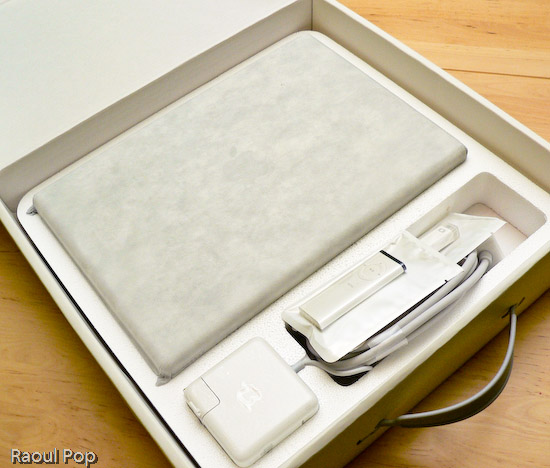
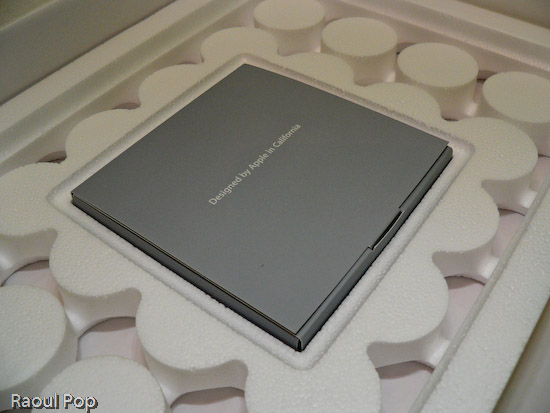
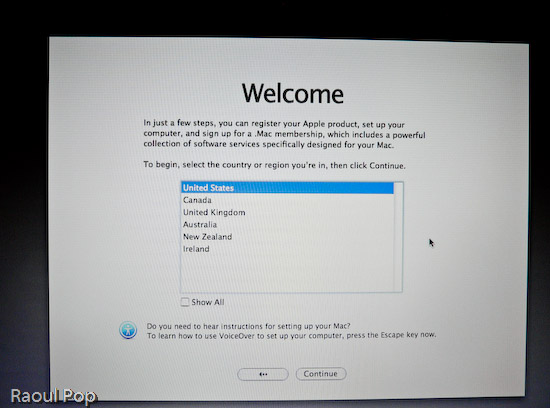
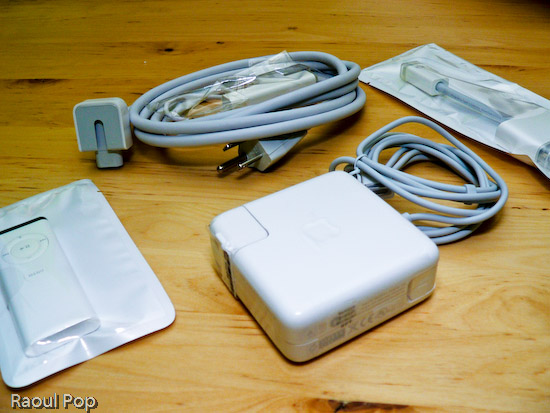
Anyway, the laptop arrived yesterday and I took it out of the box, duly documenting the process with photos. You’re welcome to have a look.

MacBook in its box

MacBook box opened

MacBook wires, adaptors and remote control

MacBook DVDs, manuals

13? White MacBook

13? White MacBook with lid open

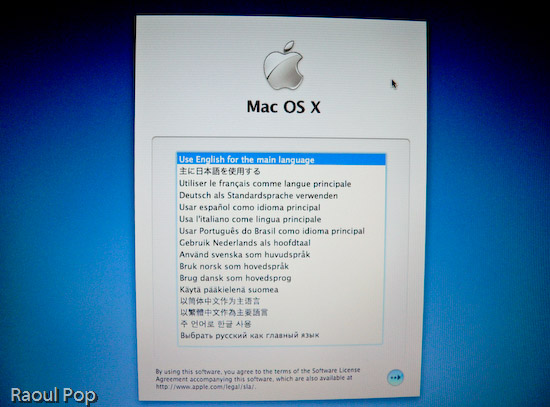
MacBook language selection screen

MacBook welcome screen

Standard