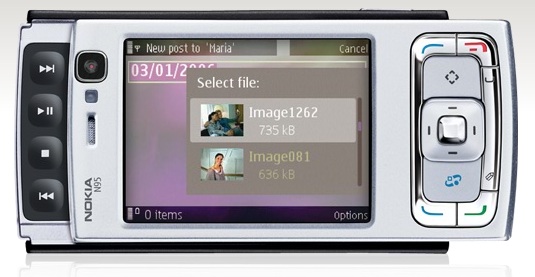
One of the reasons I bought a Nokia N95 was the ability to tether it as a Bluetooth modem on my MacBook Pro. I wanted to access the internet via my mobile phone if I’m away from home or from a WiFi spot. While Nokia’s PC Suite of applications includes an option to tether the phone to a Windows machine with just a few clicks of the mouse, it’s not that simple for the Mac.
Fortunately, once you go through a 5-10 minute initial setup process (outlined below), connecting to the net via the N95 becomes a simple matter of two mouse clicks. Keep in mind that this tutorial will help you configure a Nokia N95 phone only for the T-Mobile network; you’re on your own when it comes to other service providers, but the process should be fairly similar.
I’m indebted to this pre-existing tutorial from The Nokia Blog. However, I found the instructions a bit confusing, as the Mac OS X operating system has been updated since and the network preference screens don’t look the same. Consider my post an updated tutorial, with screenshots from the current Mac OS X (10.5.5).
1. Get the 3G modem scripts for Nokia phones from Ross Barkman‘s website.
Look for the section called “Scripts for Nokia 3G (EDGE/UMTS) phones”.

He’s written numerous such scripts and posted them for download on his site. They work fine for countless people, so please, if his script works for you, show your thanks by donating a few dollars to him.
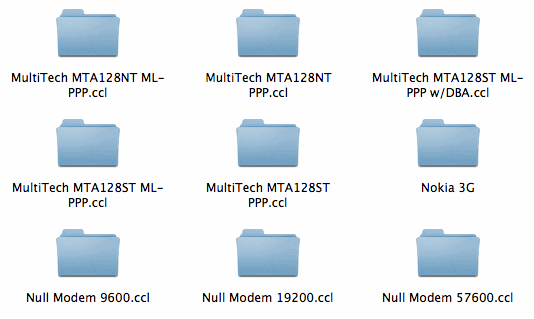
2. Drop the “Nokia 3G” folder containing the modem scripts (yes, the entire folder), in the /Library/Modem Scripts/ directory at the root level of your Mac’s hard drive.
It should look like this once it’s in there:
3. Add your Nokia N95 phone as a paired Bluetooth device.
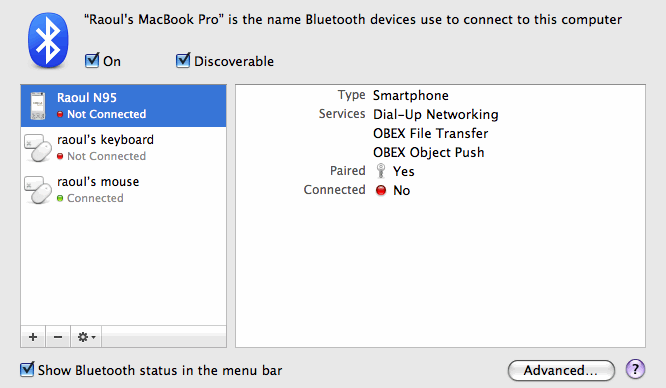
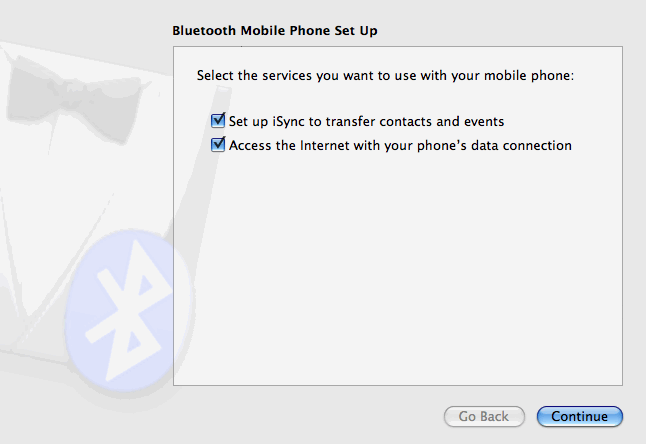
If you haven’t added your phone as a Bluetooth device yet, click on the plus sign in the lower left corner and go through the wizard to add it. Make sure to check both boxes shown below, and to pair it as well.
If you have already added it as a Bluetooth device, you may want to run through the configuration wizard again, making sure to mark both checkboxes, as seen below. Click on the phone to select it from the list of Bluetooth devices (see screenshot above), then click on the little gear icon in the lower left corner of the dialog box and select “Configure this device”. You will get the following screen. Click on Continue and run through the wizard to the end.
4. Configure the Bluetooth service preferences.
Go to Network preferences. Here’s where you have a choice. If you’re going to want to use multiple mobile phones or Bluetooth devices as modems, you may want to duplicate the existing Bluetooth service and configure each copy separately, naming them accordingly (Nokia N95, iPhone, etc). To do that, select Bluetooth, then click on the little gear in the lower left corner and select “Duplicate Service”.
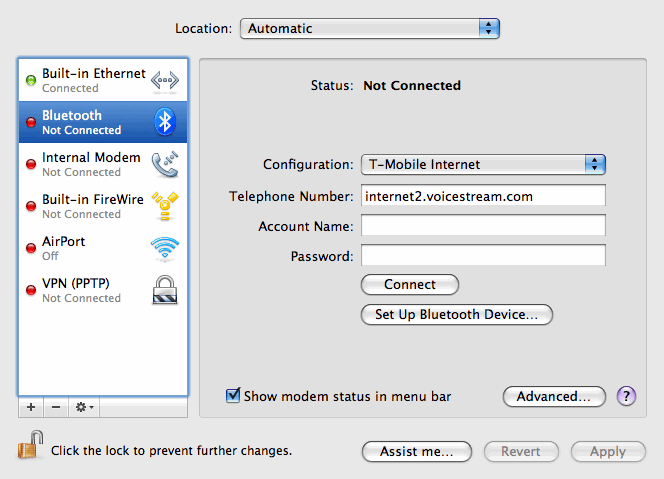
I’m only going to use the Nokia N95 as a Bluetooth modem, so I chose to work directly with the existing Bluetooth service, as you can see below. To do that, click on the Configuration drop-down menu and choose “Add Configuration”. You’ll be asked for a name. I named it “T-Mobile Internet”. In the Telephone Number field, I put “internet2.voicestream.com”.
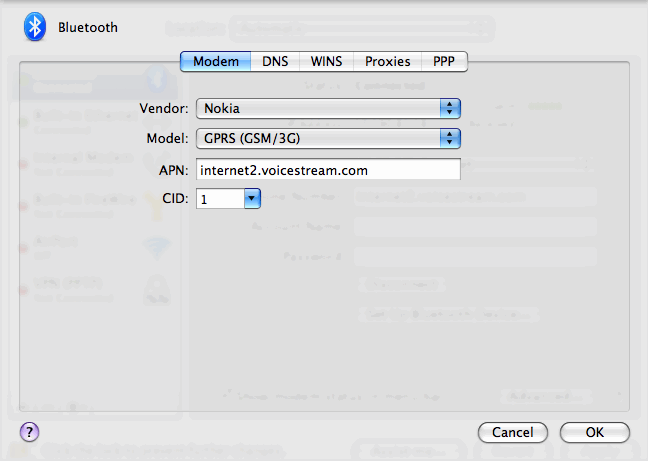
Now click on Advanced, and you’ll get a whole series of preference panes. Modem is the first one. Make sure the information matches what you see below.
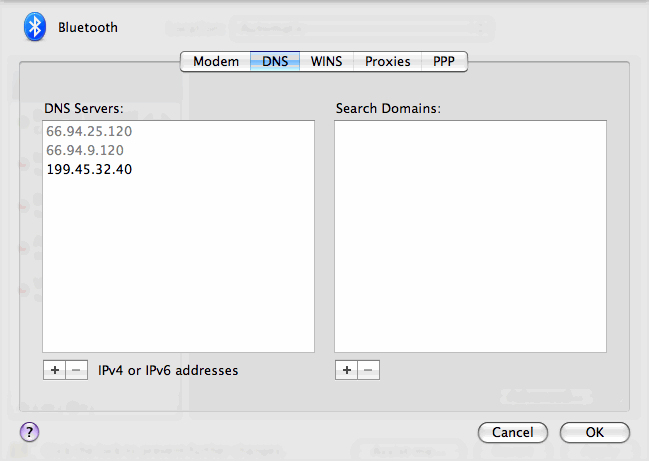
Now click on DNS. Some say you should pre-fill DNS server addresses, because your mobile service provider may or may not give them to you. Thankfully, T-Mobile will automatically assign you two DNS server addresses when you connect, but just to be on the safe side, grab one or two more DNS addresses from a public DNS server list like this one and add them to the DNS preference pane. If you look below, the two DNS addresses that are grayed out were automatically assigned by T-Mobile after I connected through the phone, and the single address in black was the one I manually added.
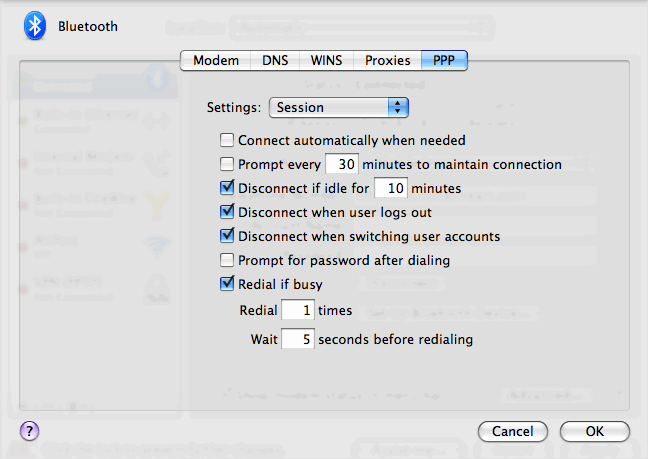
Don’t worry about WINS or Proxies, go to PPP, where you’ll have a drop-down menu. The Session options on the PPP preference pane should look like this:
And the Configuration options on the PPP preference pane should look like this:
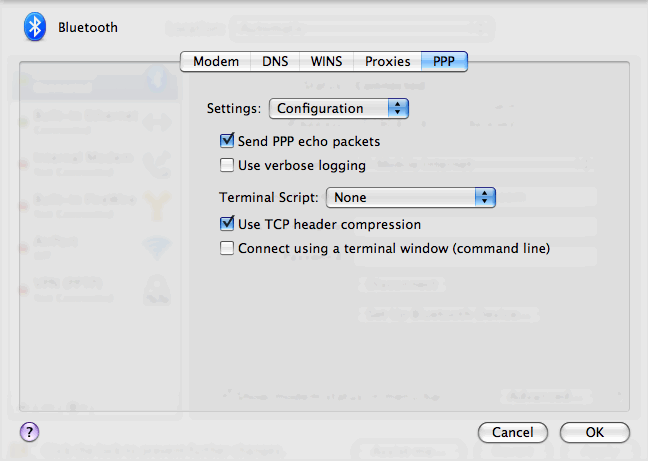
Some people say you should disable “Send PPP echo packets” and “Use TCP header compression”. I left them enabled, and my connection works just fine. But, if you should have problems connecting and staying on, you may want to disable them. Just uncheck them and hit OK.
5. Apply the changes and click on Connect.
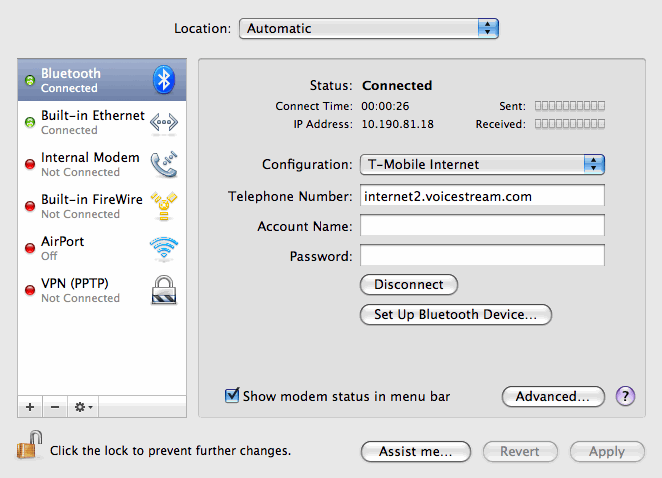
The Bluetooth modem status should change in the menu bar and first say “Connecting…” then “Authorizing…”. After it connects, it should show the time elapsed since the connection started, like this:

There’s one thing I haven’t been able to figure out though, and I would appreciate your help on this. Getting the Mac to connect to the internet reliably through the phone, every single time, is still something that I need to work out.
That first evening after I configured things as outlined above, I was able to connect and disconnect at will. However, the second morning, I got a “Could not authenticate” error. I clicked on the “Set Up Bluetooth Device” (shown above), and re-configured my N95 (as detailed in Step 3). After that, it was okay for the rest of the day, but the same connection issue re-surfaced the next day. I’d read that keeping iSync open while you connect will help, and I tried it, but it didn’t seem to work reliably for me. What has seemed to work is logging in and out of my account on the Mac, and rebooting the phone.
It seems that Nokia would be best equipped here to make things easier and more reliable. I do wish they’d release a tethering app for the Mac, just like they released an iSync plugin that lets the N95 sync with the Address Book and iCal. Until then, you can try any of the following workarounds when you experience connection issues:
- Re-configure the phone as a Bluetooth device (as outlined in Step 3 above)
- Disable “Send PPP echo packets” and “Use TCP header compression” in the PPP Configuration preference pane
- Open iSync before you try to connect to the Internet through the phone
- Log out of your account on the Mac and reboot the phone
Once the phone is tethered properly, it’s an enjoyable experience. There’s a newfound freedom I feel when I can go online from just about anywhere. There’s something elegant in using my phone as a Bluetooth modem. It can stay in my pocket or on the table next to my laptop, tethered wirelessly, still working fine as a phone while also letting me get on the Internet. Cool stuff indeed.
26.011201
-80.149490











 Raoul Pop